How to manage templates?
Introduction
The Templates page is your central hub for managing all message and document templates across every channel — WhatsApp, Email, SMS, and Docx. Templates save time by letting you create reusable, pre-approved messages that can be sent to contacts quickly and consistently.
Navigating to Templates
In the left sidebar, click Templates. The page opens showing all templates in your account, sorted by creation date (newest first).
Understanding the Templates List
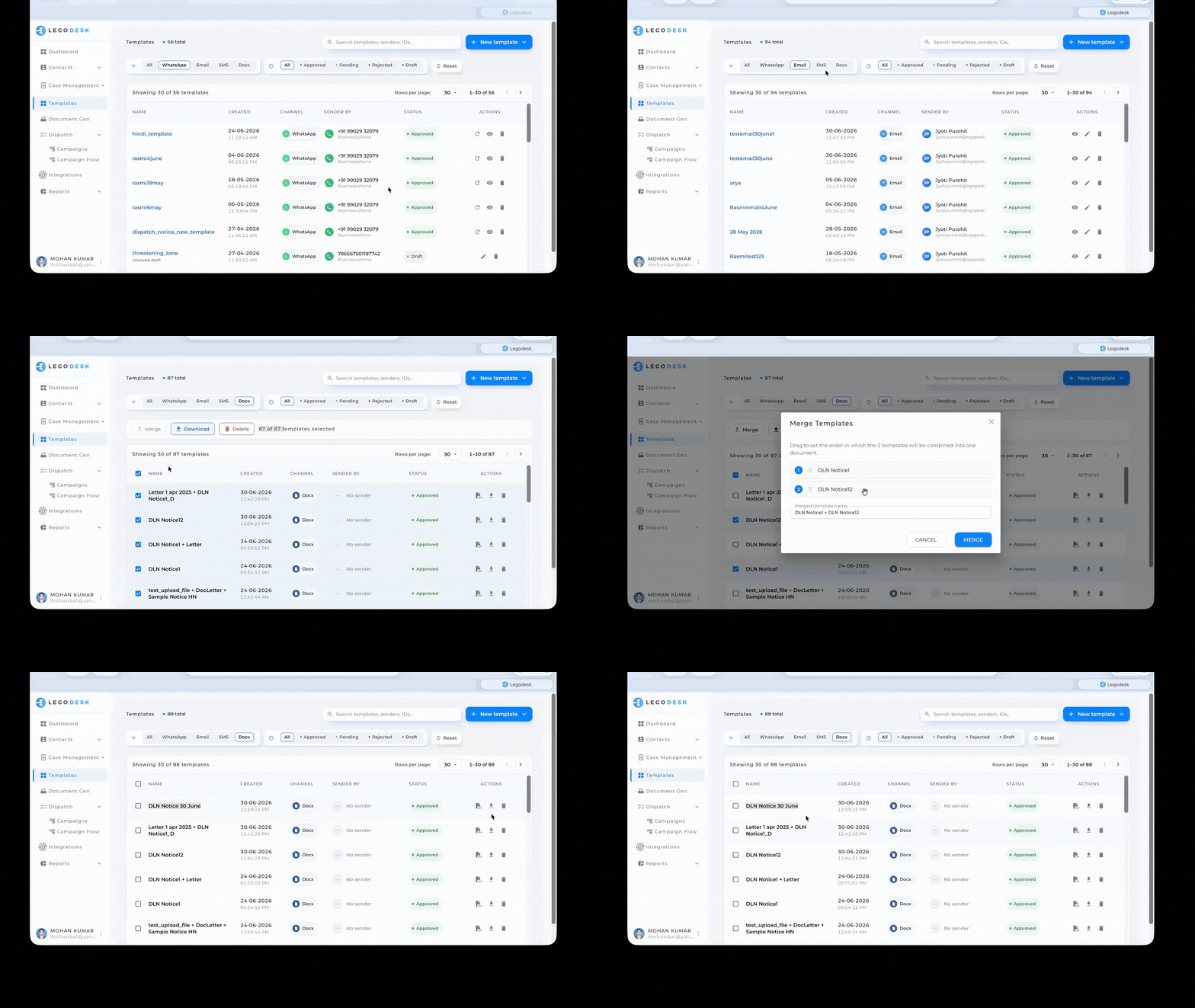
At the top of the page, you’ll see the total count of templates in your account (e.g., 317 total). The list displays 30 templates per page by default, and you can navigate between pages using the arrows in the top-right of the table.
Each template row shows the following columns:
| Column | Description |
|---|---|
| Name | The template's display name. Clickable names (shown in blue) open the template for editing or preview. Not applicable for DOCX templates. |
| Created | The date and time the template was created. |
| Channel | The delivery channel — WhatsApp, Email, SMS, or Docx. |
| Sender By | The sender account or phone number associated with the template for digital dispatch. Shows No sender if none is assigned. |
| Status | The current approval status of the template (see Status Types below). |
| Actions | Buttons to preview, edit, download, or delete the template. |
Filtering Templates
You can narrow down your template list using the two filter bars at the top:
By Channel
Click any of the channel tabs to show only templates of that type:
- All — Shows every template regardless of channel
- WhatsApp — WhatsApp message templates
- Email — Email templates
- SMS — SMS templates
- Docx — Document templates
By Status
Use the status filter to show only templates in a particular approval state:
- All — Shows templates in every status
- Approved — Templates that have been reviewed and approved for use
- Pending — Templates awaiting review or approval (e.g., WhatsApp templates submitted to Meta)
- Rejected — Templates that were not approved
- Draft — Templates saved but not yet submitted for approval
Click Reset to clear all active filters and return to the full list.
Template Status Types
| Status | Meaning |
|---|---|
| ✅ Approved | The template is active and ready to use in messages or dispatches. |
| 🟡 Pending | The template has been submitted and is waiting for approval (common for WhatsApp templates, which require Meta's approval). |
| 🔴 Rejected | The template was reviewed and not approved. You may need to edit and resubmit. |
| ⬜ Draft | The template has been created but not submitted for review yet. |
Searching Templates
Use the Search bar (top-right of the page) to find templates by name, sender, or template ID. Type your search term and results will filter in real time.
Creating a New Template
- Click the + New Template button in the top-right corner.
- Select the channel type (WhatsApp, Email, SMS, or Docx).
- Fill in the template name, content, and any required variables or placeholders.
- Save as a draft or submit for approval, depending on the channel.
Note: WhatsApp templates require approval from Meta before they can be used. This process can take 24–48 hours.
Template Actions
Depending on the template’s channel and status, the following actions may be available in the Actions column:
| Icon | Action | Description |
|---|---|---|
| 👁 | Preview | View the template content without editing. |
| ✏️ | Edit | Modify the template (available only for Email templates). |
| 📄 (CSV) | Export | Download the placeholder data as a CSV file (available for Docx templates). |
| ⬇️ | Download | Download the template document file. |
| 🔄 | Re-submit | Re-fetch a template status when pending for approval. |
| 🗑 | Delete | Permanently delete the template. This action cannot be undone. |
Changing Rows Per Page
By default, the list shows 30 templates per page. To see more or fewer at once, click the Rows per page dropdown (located above the table on the right) and select your preferred count. Use the ← → arrows to navigate between pages.
Managing Document Templates: Merge, Download, and Delete
The Document Templates list page lets you select one or more Docx templates and perform bulk actions — merge them into a single combined document, download them, or delete them. This guide explains how each action works.
Selecting Templates
Before using any bulk action, you need to select the templates you want to work with.
- Select a single template — click the checkbox to the left of its name. A blue checkmark appears and the action bar becomes visible above the list.
- Select multiple templates — check each template individually.
- Select all templates on the page — click the checkbox in the header row. A message shows how many are selected (e.g. “1 of 85 templates selected”).
- Select all templates across all pages — after selecting the page, click “Select all 85 templates” in the action bar.
The action bar shows three buttons — Merge, Download, and Delete — alongside a count of how many templates are selected.
Merge
Merging combines minimum two and maximum three Docx templates into a single new template, preserving the content of each in sequence.
How to Merge
- Select at least 2 and maximum 3 templates from the list.
-
- If only one is selected, hovering over the Merge button shows the tooltip “Select at least 2 templates to merge” and the button remains inactive.
- If 4 templates are selected, hovering over the Merge button shows the tooltip “You can merge a maximum of 3 templates” and the button remains inactive.
- Click Merge in the action bar.
- The Merge Templates dialog opens, showing the selected templates as a numbered list.
Setting the Merge Order
The dialog displays each template as a draggable row numbered by its position in the final document. Drag the rows up or down to set the order in which the templates will be combined.
Naming the Merged Template
A Merged template name field at the bottom of the dialog is pre-filled with the names of the selected templates joined together (e.g. DLN Notice1 + DLN Notice1 + Letter). You can edit this name to something more meaningful before saving.
Completing the Merge
- Click MERGE to create the new combined template. It will appear as a new entry in the Templates list.
- Click CANCEL to close the dialog without making any changes.
Note: Merging creates a brand-new template. The original templates remain unchanged
Download
The Download action lets you save one or more template files to your computer.
How to Download
- Select one or more templates from the list.
- Click Download in the action bar.
- The selected template files are downloaded to your device.
Tip: You can also download a single template directly from its row in the list using the download icon (↓) in the Actions column, without needing to use the bulk selection.
Delete
The Delete action permanently removes one or more templates from your account.
How to Delete
- Select one or more templates from the list.
- Click Delete (shown in red) in the action bar.
- Confirm the deletion when prompted.
Warning: Deletion is permanent and cannot be undone. Make sure you no longer need the selected templates before confirming. If a template is in use by a campaign or dispatch flow, review those dependencies before deleting.
Tip: To delete a single template without bulk selection, click the trash icon in the Actions column of that template’s row.