Creating a SMS Template
Unlike WhatsApp, Email, or Docx templates, SMS templates cannot be composed or customized directly inside LegoDesk.
This is because SMS in India (and most other regions) is regulated by DLT (Distributed Ledger Technology) — a government-mandated system that requires every SMS template to be pre-registered and approved before it can be sent. LegoDesk can only reuse a template that has already been approved through this process — it cannot generate a new one on the fly.
So before you add an SMS template in LegoDesk, you need to complete two steps outside LegoDesk first:
- Draft your message with your telecom/SMS service provider (e.g. MSG91) — including the exact wording and variable placeholders you want to use.
- Get that exact message approved on the DLT portal. DLT approval is tied to the precise wording — even small changes (extra spaces, different punctuation, reworded sentences) will require a fresh approval.
Once approval comes through, the provider will give you two things you’ll need for the next step:
- An MSG91 Template ID (or equivalent, depending on your provider)
- A DLT Template ID
Only after you have these two IDs should you go into LegoDesk to add the template — at that point, you’re not writing a new message, you’re just registering the already-approved template in the system so it can be used to send messages.
Step 1: Open the Templates page
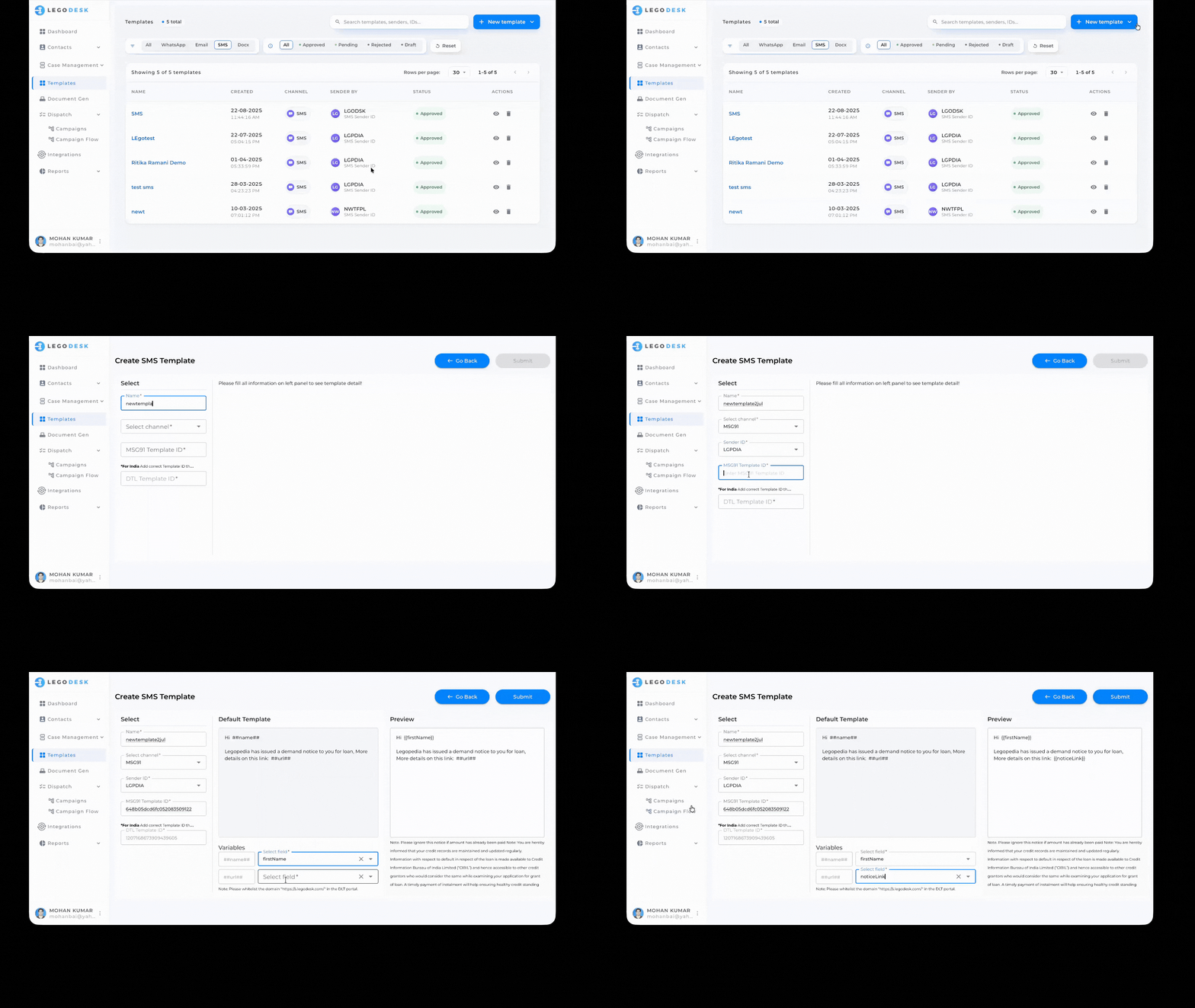
From the left-hand sidebar, click Templates. This page lists all your existing templates — WhatsApp, Email, SMS, and Docx — along with their creation date, channel, sender, and approval status.
Step 2: Start a new template
In the top-right corner, click + New Template. A dropdown panel appears with four channel options:
Lorem ipsum dolor sit amet, consectetur adipiscing elit. Ut elit tellus, luctus nec ullamcorper mattis, pulvinar dapibus leo.
| Channel | Description |
|---|---|
| Requires Meta approval | |
| Rich HTML with variables | |
| SMS | DLT Approved template |
| Docx | Upload a Word document |
Select SMS to open the SMS template builder.
Step 3: Fill in the template details
You’ll land on the Preview SMS Template screen. Under the Select panel, complete the following fields:
| Field | Description |
|---|---|
| Name | An internal, recognizable name for the template (e.g. test sms) |
| Select channel | Your SMS gateway/provider (e.g. MSG91) |
| Sender ID | Your DLT-approved sender ID (e.g. LGPDIA) |
| MSG91 Template ID | The template ID registered in your MSG91 account |
| DLT Template ID | The template ID, registered with DLT operator (Auto filled) |
All fields marked with an asterisk (*) are required.
As soon as you enter the MSG91 Template ID, associated DLT Template ID auto fills up, LegoDesk pulls in the corresponding DLT-approved message and displays it in the Default Template box. This message is read-only — you cannot edit, rephrase, or adjust the wording in any way. You must use it exactly as approved.
Step 4: Write your message
Hi ##name##
Legopedia has issued a demand notice to you for loan, More details on this link: ##url##
Any dynamic values in the approved template appear as double-hash placeholders (##variableName##). Since the template itself can’t be edited, this step is simply to confirm the correct template has loaded — check that the DLT Template ID you entered has pulled in the message you intended to use.
Step 5: Map your variables
Under Variables, match each ##placeholder## from your message to the actual data field it should pull from at send time. For example:
- ##name## → firstName
- ##url## → noticeLink
As you fill these in, the Preview panel on the right updates automatically, showing exactly how the message will render with the mapped {{ }} merge tags in place of your ##placeholders##.
Note for India (DLT): Whitelist the domain https://s.legodesk.com/ in your DLT portal. If this domain isn’t whitelisted, links included in your SMS may fail to deliver.
Step 6: Submit
Once you’ve reviewed the message in the Preview pane and confirmed all fields are correct, click Submit in the top-right corner.
Your new SMS template will now appear in the Templates list, tagged under the SMS channel.