Tracking Consignments- How do we get these reports?
Introduction
Tracking Consignments- How do we get these reports?
Consignment tracking enables real-time monitoring of shipments, ensuring transparency and timely delivery. It helps businesses improve efficiency while enhancing customer trust and satisfaction.
Importing Contacts
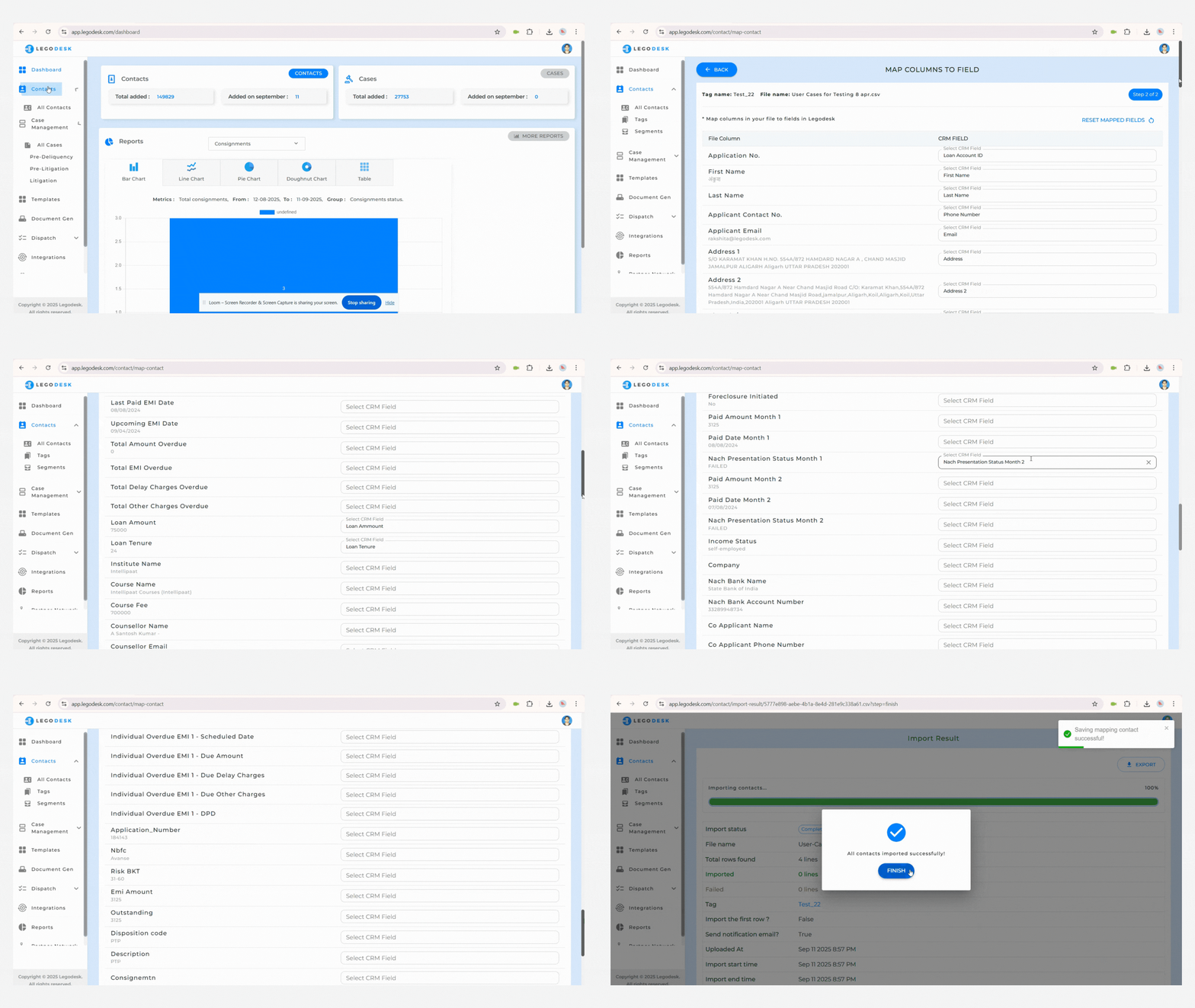
Navigate to the Import Contacts option.
Enter tag details (Optional).
Upload a CSV or XLSX file containing your contact data.
Once uploaded, a notification will confirm a successful import.
You will be directed to a mapping interface where the columns from your file must be aligned with system fields (mandatory: map consignment field).
After completing the mapping, click Save.
A confirmation pop-up will appear, indicating all contacts have been imported successfully.
Consignment Tracking
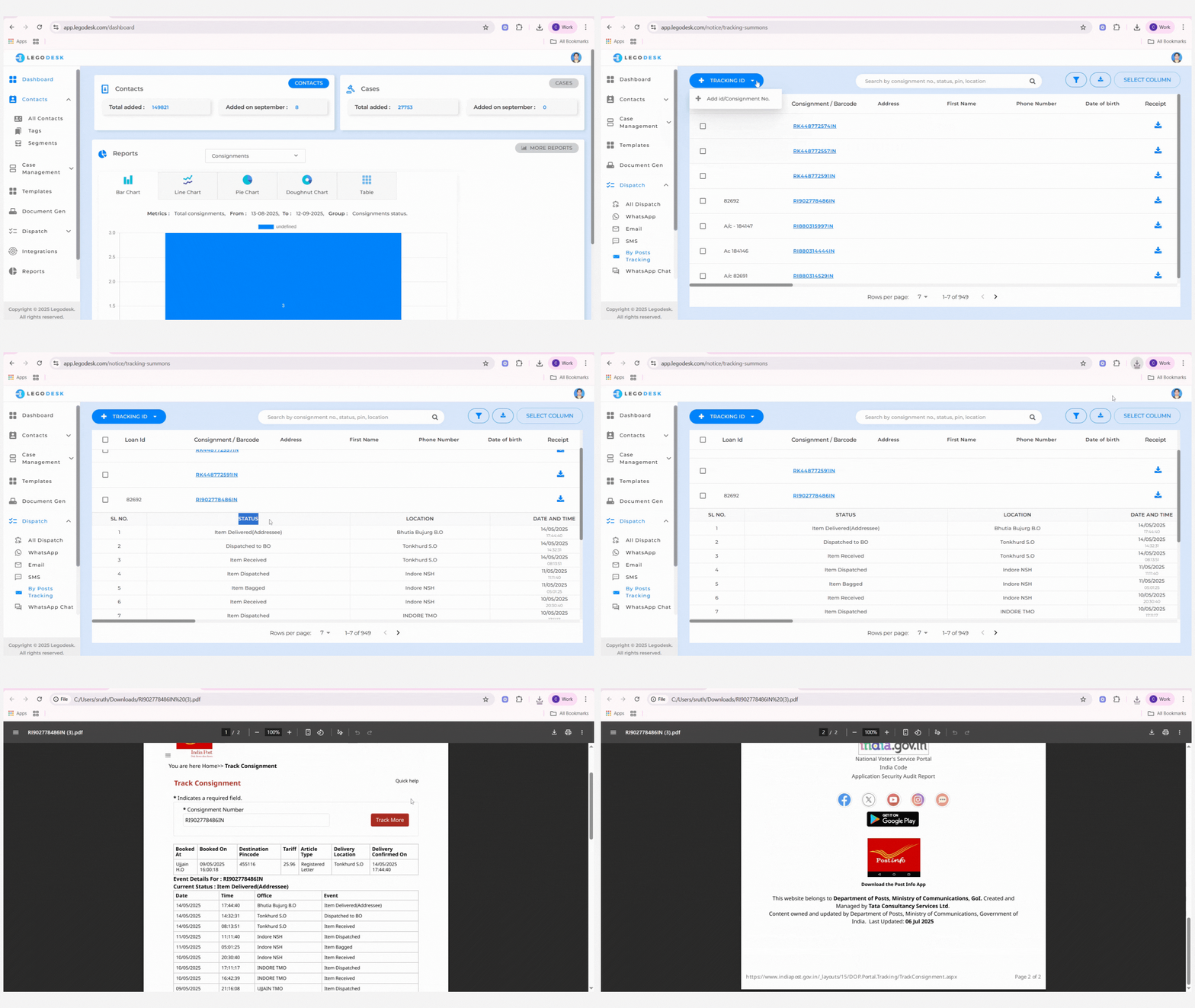
Navigate to the Dispatch menu and select By Post Tracking.
An interface displays all consignment records along with their unique IDs.
Click on the Tracking ID option to add a consignment number or ID.
Click on Consignment/ Barcode to view detailed tracking information, (Location, Date & Time) including the latest status updates.
To download a receipt, click the Download icon in the receipt column.
A PDF report will be generated, containing the consignment number, booking details, and current delivery status.
Accessing Consignment Reports
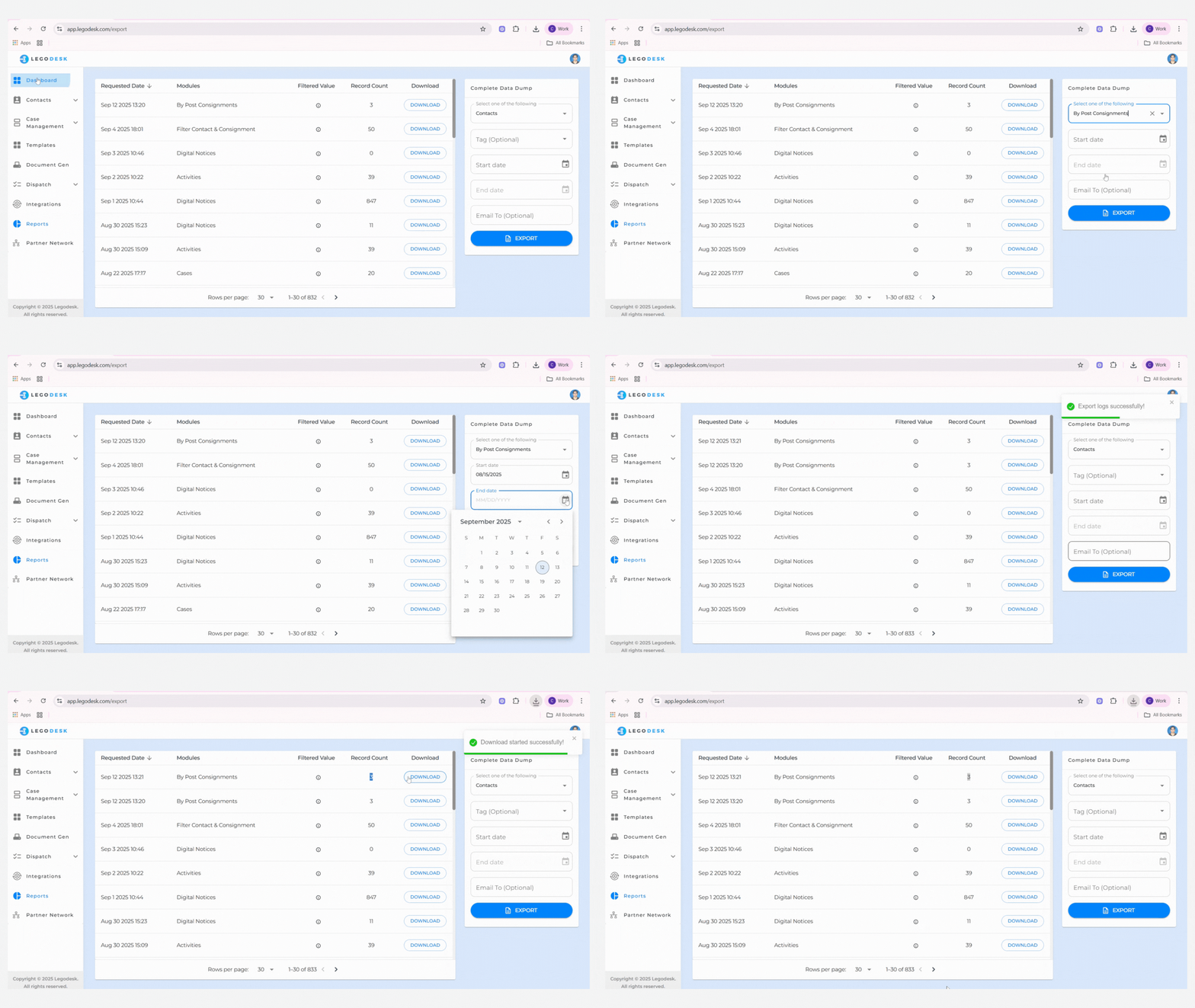
Navigate to the Reports menu.
Download the required consignment reports as needed.
Exporting Logs / Complete Data Dump
From the dropdown, select By Post Consignment for the data you wish to export.
Choose the Start and End dates for the reporting period.
(Optional) Enter your email address to receive the report directly in your inbox.
Click Export to generate and download the report.
Legodesk is not a law firm and does not provide legal advice. The use of any materials or services or software is not a substitute for legal advice. Only a legal practitioner can provide legal advice and a legal practitioner should be consulted for any legal advice or matter. We neither endorse, nor solicit the work of any Lawyers, Law Firms, and Legal Professionals.