How to Enable Integrations?
Introduction
How to download and create new Report?
Integrations enable seamless connection with third-party tools, enhancing productivity and reducing manual work. They help automate workflows, improve data accuracy, and centralize operations within a single platform.
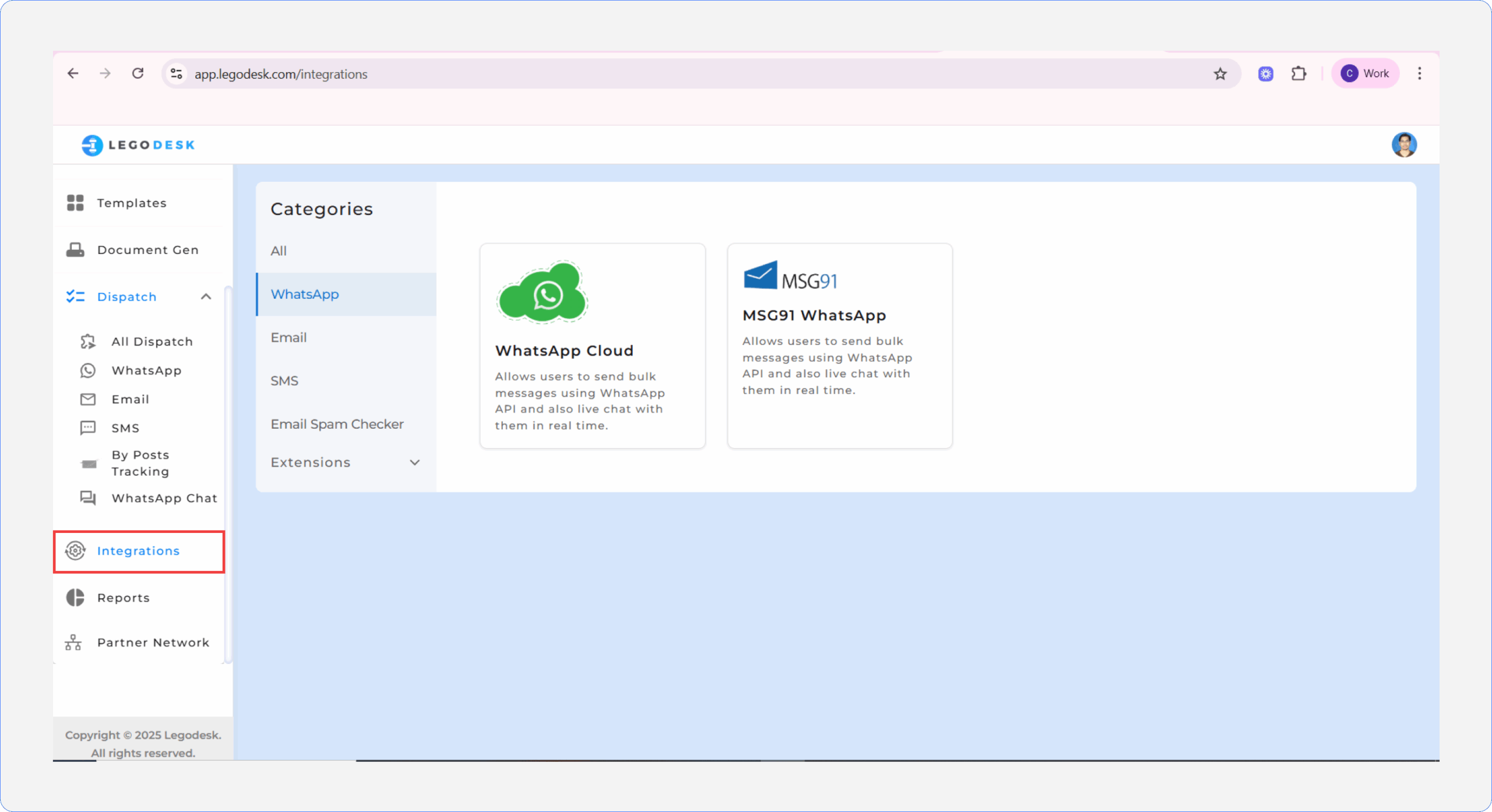
WhatsApp Integration
Access the Integrations Menu
- Navigate to Integrations > All Categories (SMS, Email, WhatsApp, Spam Checker).
Select WhatsApp Integration
- Click on WhatsApp Integration.
- Choose either WhatsApp Cloud or MSG91 as the integration option.
Configure the Channel
- A pop-up window will appear, allowing you to either add a mobile number or select an existing one.
- To add a new number, click Add Number. A new pop-up will appear where you need to enter:
Mobile Number
Phone Number ID
Permanent Access Token
WhatsApp Business Account ID
- Click Submit once details are entered.
Finalize Integration
- The WhatsApp service will now be successfully integrated with the Legodesk application.
Email Integration
Access the Integrations Menu
- Navigate to Integrations > All Categories (SMS, Email, WhatsApp, Spam Checker).
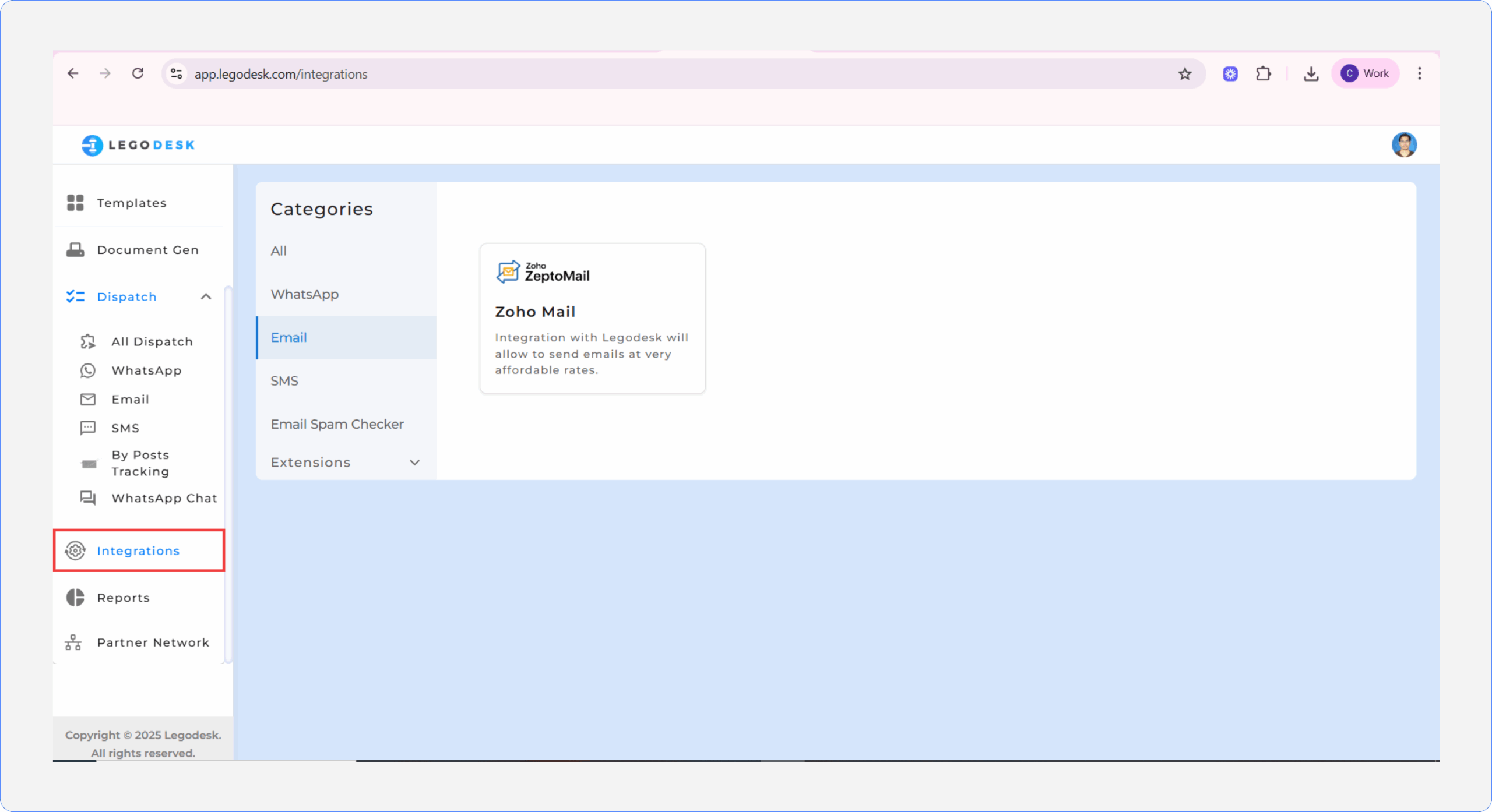
Select Email Integration
Click on Email Integration.
Choose Zoho Zeptomail as the integration option.
Configure the Channel
A pop-up window will appear, allowing you to either add an email setting or select an existing one.
- To add a new setting, click Add an Email Setting, choose the desired option from the dropdown menu, and then click Submit.
Finalize Integration
- The Zoho Zeptomail Email service will now be successfully integrated with the Legodesk application.
SMS Integration
Access the Integrations Menu
- Navigate to Integrations > All Categories (SMS, Email, WhatsApp, Spam Checker).
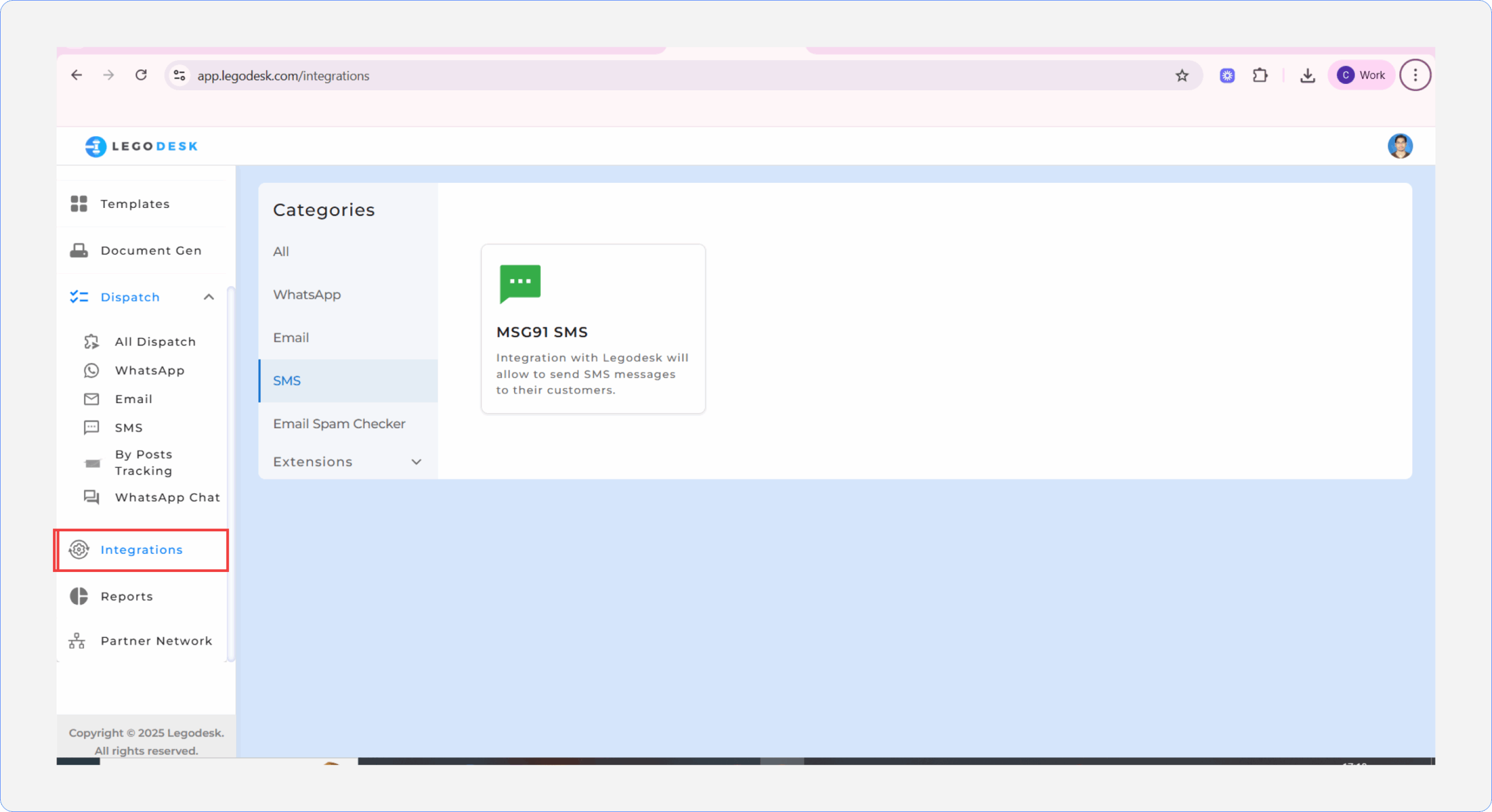
Select SMS Integration
- Click on SMS Integration.
- Choose MSG91 as the integration option.
Configure the Channel
- A pop-up window will appear, allowing you to either add a new channel or select an existing one.
- To add a new channel, click Add Channel, select the desired option from the dropdown menu, and then click Submit.
Validation
- If MSG91 is selected, you will see the following message:
“This channel must be confirmed by Legodesk before usage.”
Finalize Integration
Once confirmed, enter the API Key and click Create.
The MSG91 SMS service will now be successfully integrated with the Legodesk application.
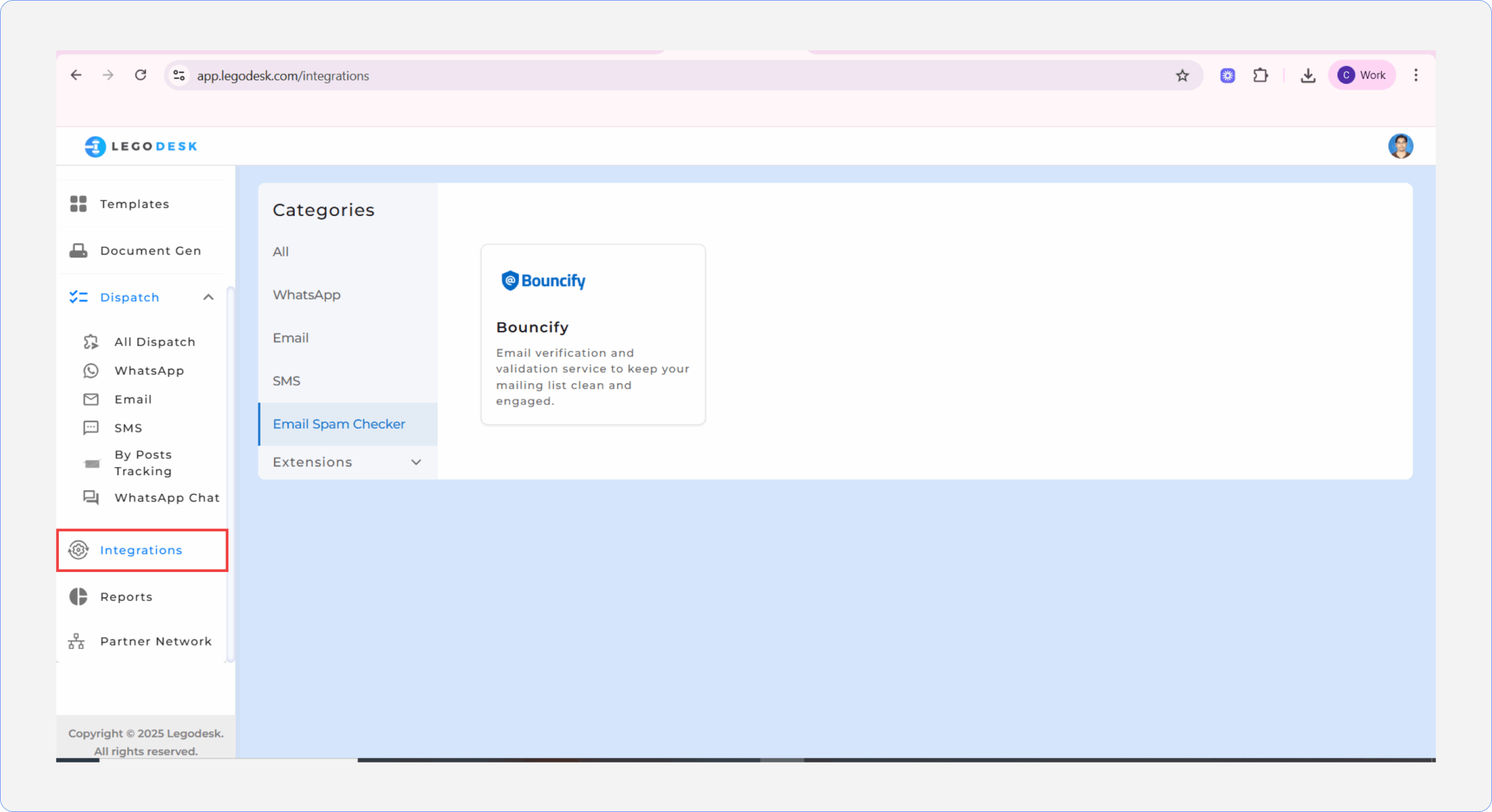
Spam Checker Integration
Access the Integrations Menu
- Navigate to Integrations > All Categories (SMS, Email, WhatsApp, Spam Checker).
Select Spam Checker
- Click on Spam Checker.
- Choose Bouncify as the integration option.
Configure the Channel
- A pop-up window will appear, allowing you to either add an API URL or select an existing one.
- To add a new integration, click API URL, where a pop-up will open with the dynamic API Name (Bouncify).
- Enter the API URL and API Key, then click Submit.
Finalize Integration
- The Bouncify Spam Checker service will now be successfully integrated with the Legodesk application.
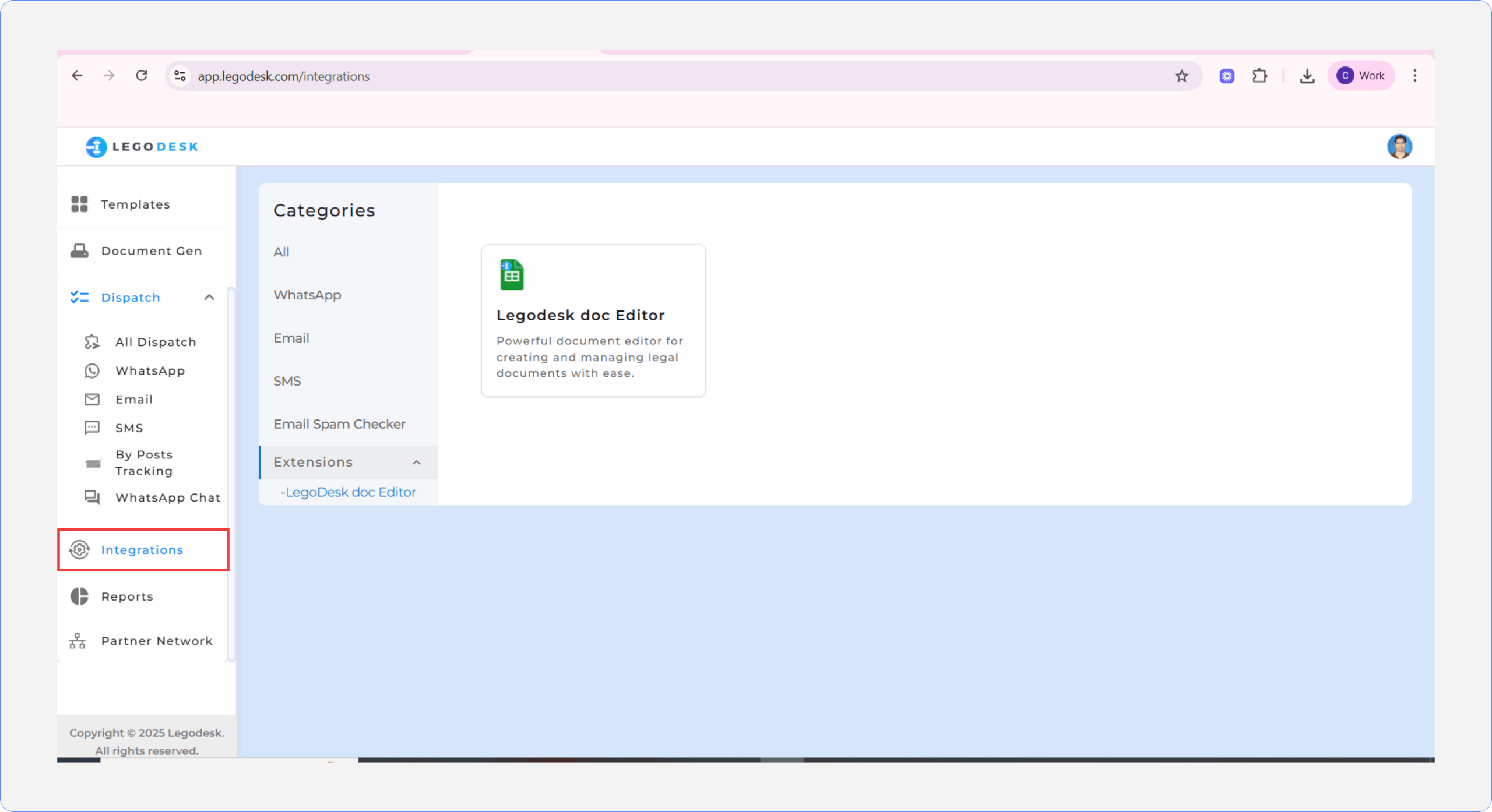
Extensions
Access the Integrations Menu
- Navigate to Integrations > All Categories (SMS, Email, WhatsApp, Spam Checker, Extensions).
Select Extensions dropdown > Legodesk doc Editor
- Click on Legodesk doc Editor
- Download the Legodesk add-on (Google Doc Editor) from the Google Play Store or App Store. https://workspace.google.com/marketplace/app/legodesk_doc_editor/239554801308