

How to access a Google Sheets template within the Legodesk application using the extension?
Legodesk Google sheet Editor
The Legodesk Google Sheets Add-on helps streamline legal documentation processes directly within Google Sheets. This guide walks you through three key features: Merge, Split, and Import, so you can efficiently manage and organize your data.
How to Use the Legodesk Add-On
- Download the Legodesk add-on (Google Sheet Editor) from the Google Play Store or App Store. https://workspace.google.com/marketplace/app/legodesk_doc_editor/239554801308
- Open Google Sheets and navigate to the top menu.
- Click on Extensions > Legodesk – Doc Editor.
- The Legodesk panel will open on the right side of your screen.
Log in using your Legodesk account credentials to begin.
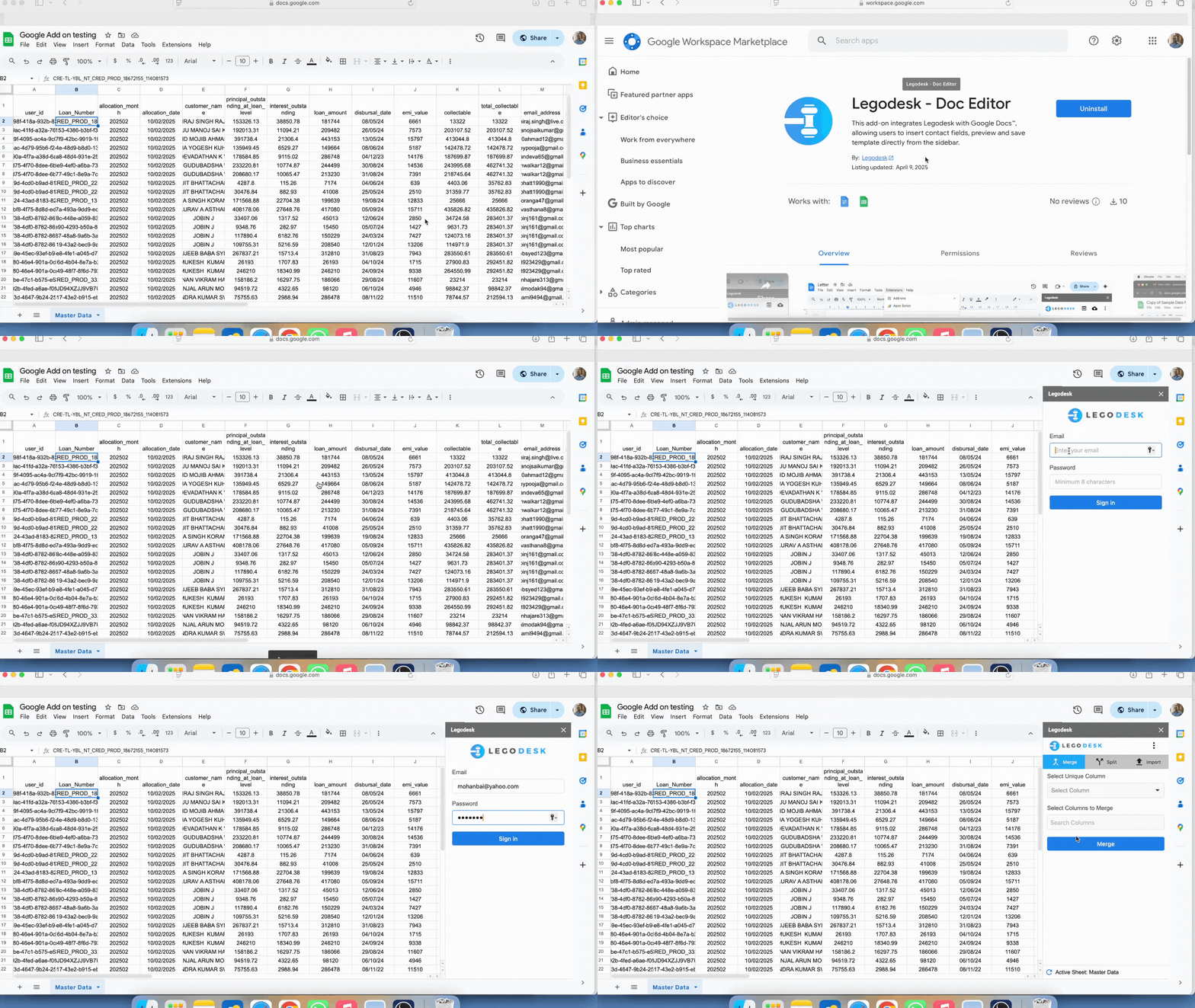
1. How to Merge Data?
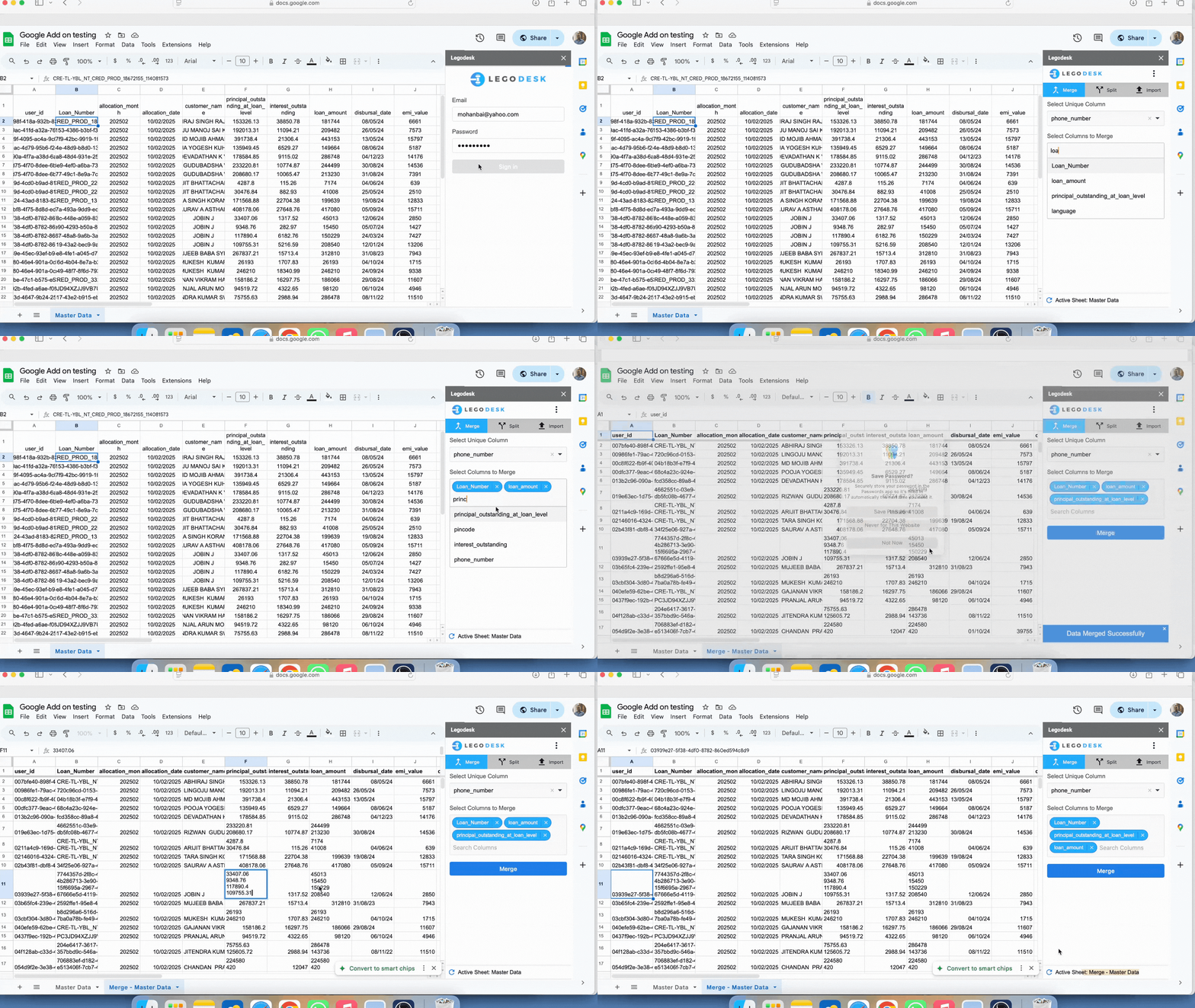
- After logging in, navigate to the Merge option.
Select the columns you wish to merge. Typically, these include for example:
Loan_Number
Loan_Amount
Principal_Outstanding_At_Loan_Level
Click on Merge.
- A confirmation pop-up will appear stating: “Merge data successfully”
- The data will now be combined and displayed in the required format.
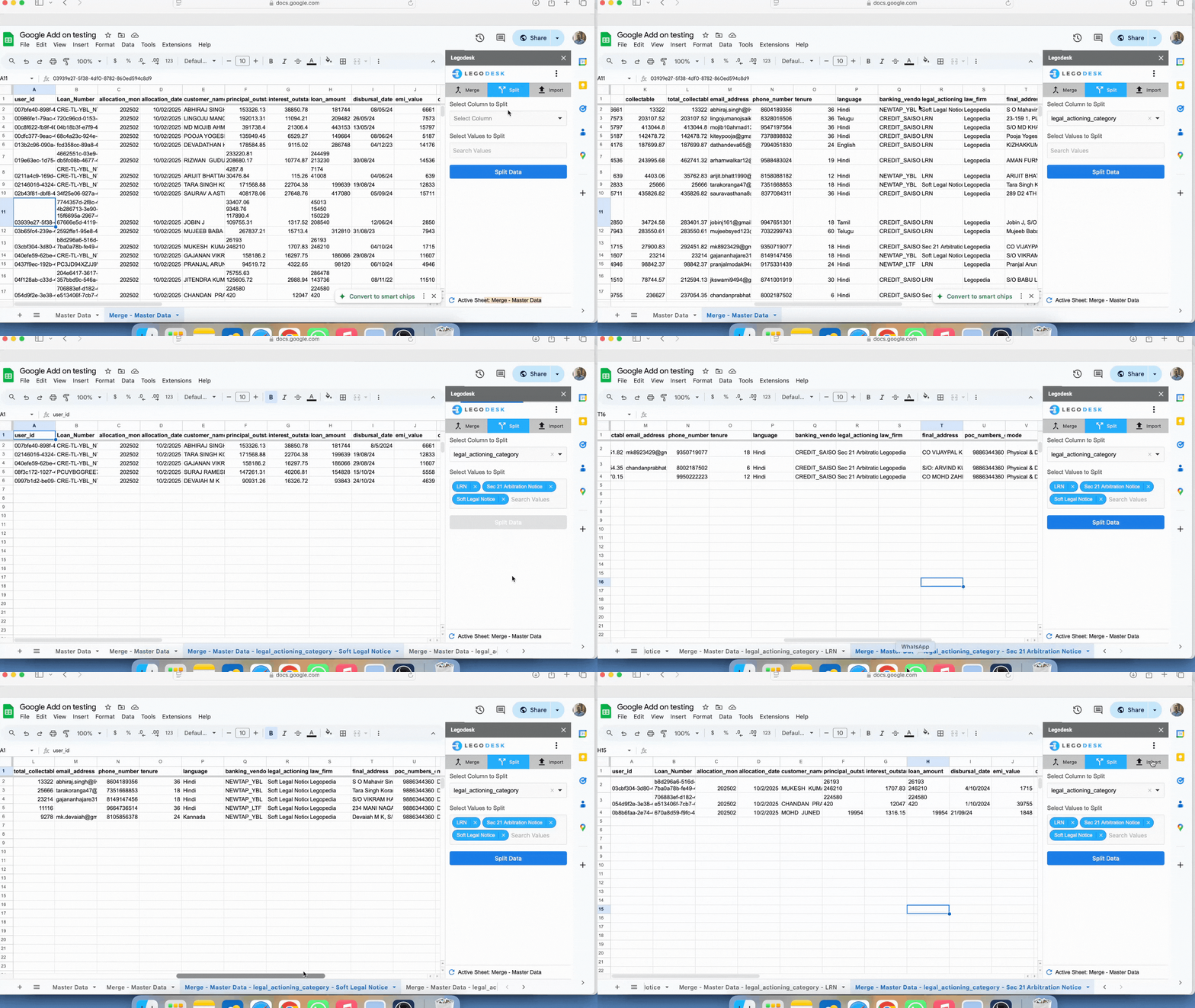
2. How to Split Data?
- Click on the Split option.
- Select the column you wish to split, for example, Legal_actioning_category.
Choose the specific values you want to split. Multiple options can be selected as needed.
Click on Split.
Split data will be added in another tab of the google sheet.
A confirmation pop-up will appear stating: “Data splits successfully.”
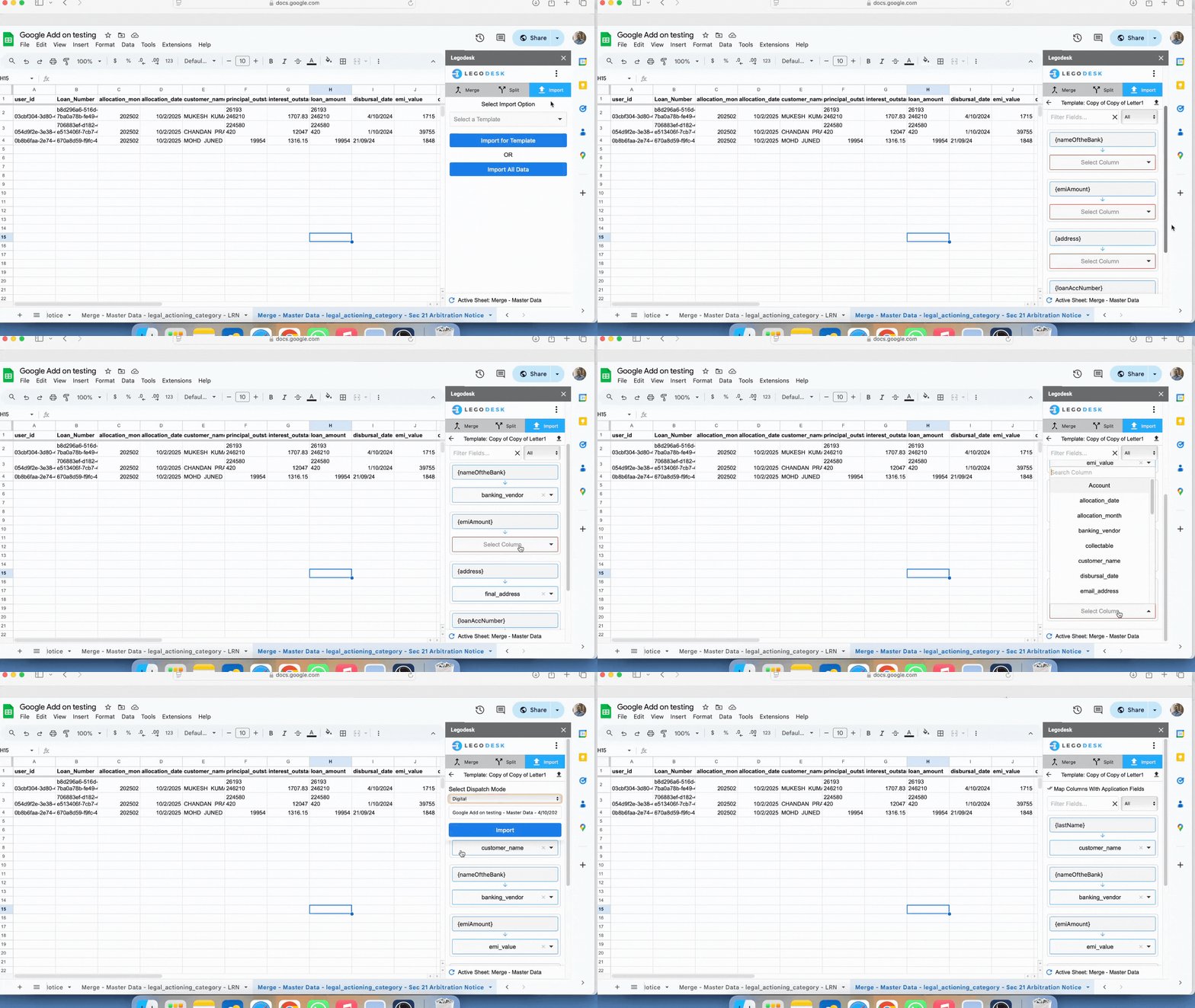
3. How to Import Data Using a Template?
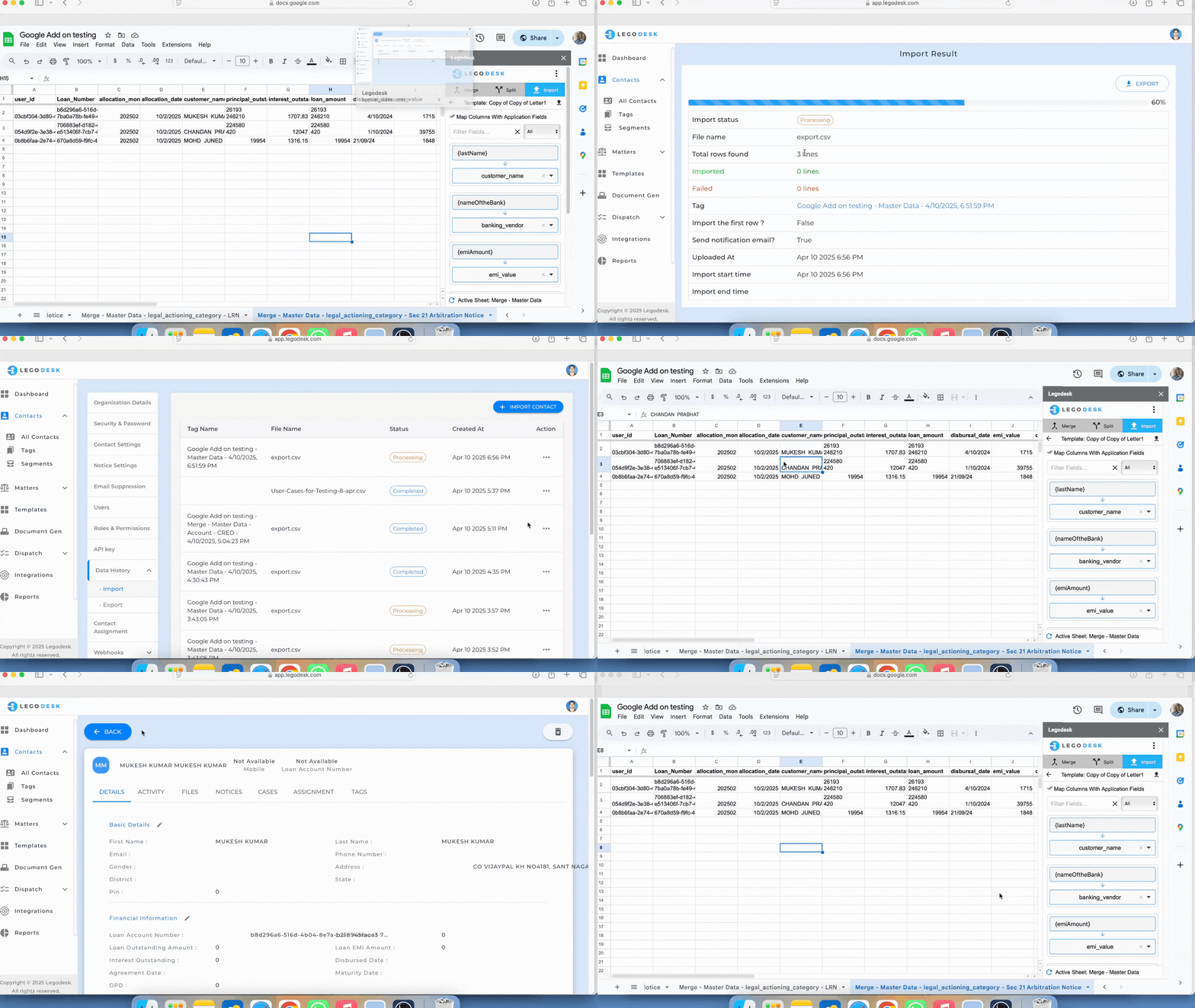
Click on the Import option.
Select the required Template and choose the fields you wish to import, such as:
First_Name
Address
Loan_Account_Number
Mobile_Number are mandatory fields.
Click the up arrow icon and set the Dispatch Mode to “Digital”.
- Click on Import.
You will receive the following confirmation messages:
“Data validated successfully.”
“Data imported successfully.”
Review Imported Data on the Legodesk Platform
Log in to the Legodesk web platform.
Click on Settings from the top menu.
In the left sidebar, navigate to Data History > Import.
Find your imported file listed at the top.
Click the three-dot icon next to the file and select Import Results.
Here, you will be able to view:
The total number of rows imported
Completed data details
Final Verification
- Go to All Contacts in the left menu to cross-check and ensure that your data has been imported correctly.
- By following these steps, you can efficiently manage your legal documentation workflows using the Legodesk Google Sheets Add-on. If you encounter any issues, please reach out to Legodesk Support for assistance.
FAQs
1. What is the Legodesk Google Sheets add-on?
It is a tool that integrates with Google Sheets to help users manage legal data, automate documentation, and streamline workflows.
2. How do I install the Legodesk add-on?
You can install it from the Google Workspace Marketplace and access it via Extensions in Google Sheets.
3. What does the Merge feature do in Legodesk?
The Merge feature combines selected columns like loan details into a single structured format for easier processing.
4. How does the Split function work?
The Split option separates selected column data into different categories and places the output in a new sheet tab.
5. How can I verify imported data in Legodesk?
You can check Data History under Settings and review import results, including total rows and completed records.
