SMS is a preferred method for Lenders to communicate with their borrowers. As SMS delivery has no dependency on the internet, it is considered as one of the trusted methods of dispatch. Hence, communicating with users using SMS is convenient and cost-effective as well.
How to Dispatch Digital Notices by SMS?
Digital Dispatch using SMS?
To start with SMS dispatch the lender first needs to integrate MSG91 (SMS Service provider) credentials and webhook setup with Legodesk application. Either customers can use their MSG91 credentials or request to the Legodesk support team to integrate Legodesk account credentials.
Navigation: Integrations > SMS > Add Channel
1. SMS Template
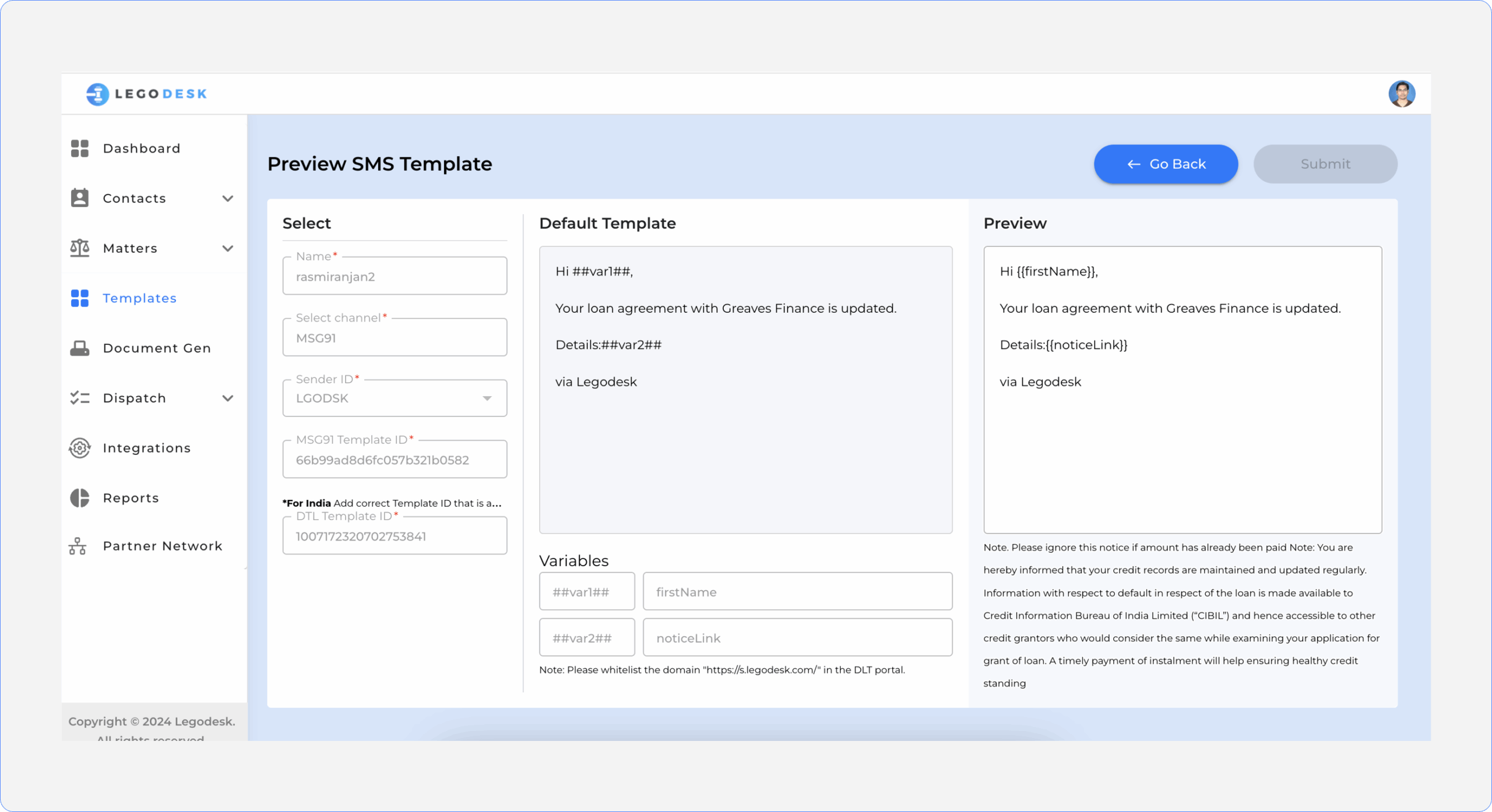
Navigation : Templates > Add Template > SMS
To proceed with SMS dispatch, lenders need to create SMS Templates.
Like WhatsApp templates, SMS templates do not have much flexibility. Need to use DLT Approved templates only. Lenders cannot customize the SMS text. Only required variables can be added.
Once the template is submitted it will be verified by DLT. If approved, template status will change to DLT Approved and it will be available for template selection in the Dispatch window.
2. Send SMS
Navigation : Dispatch > SMS > Start Dispatch
Selecting Left Menu Dispatch > SMS, SMS Dispatch listing page will display with list of messages dispatched earlier.
Users can see the dispatch details and status report by selecting the title link in the left column.
Download reports by selecting the download button in the Action column of the listing page or Download button in the details page.
Selecting ‘Start Dispatch’ button in the listing page will open the New Dispatch page
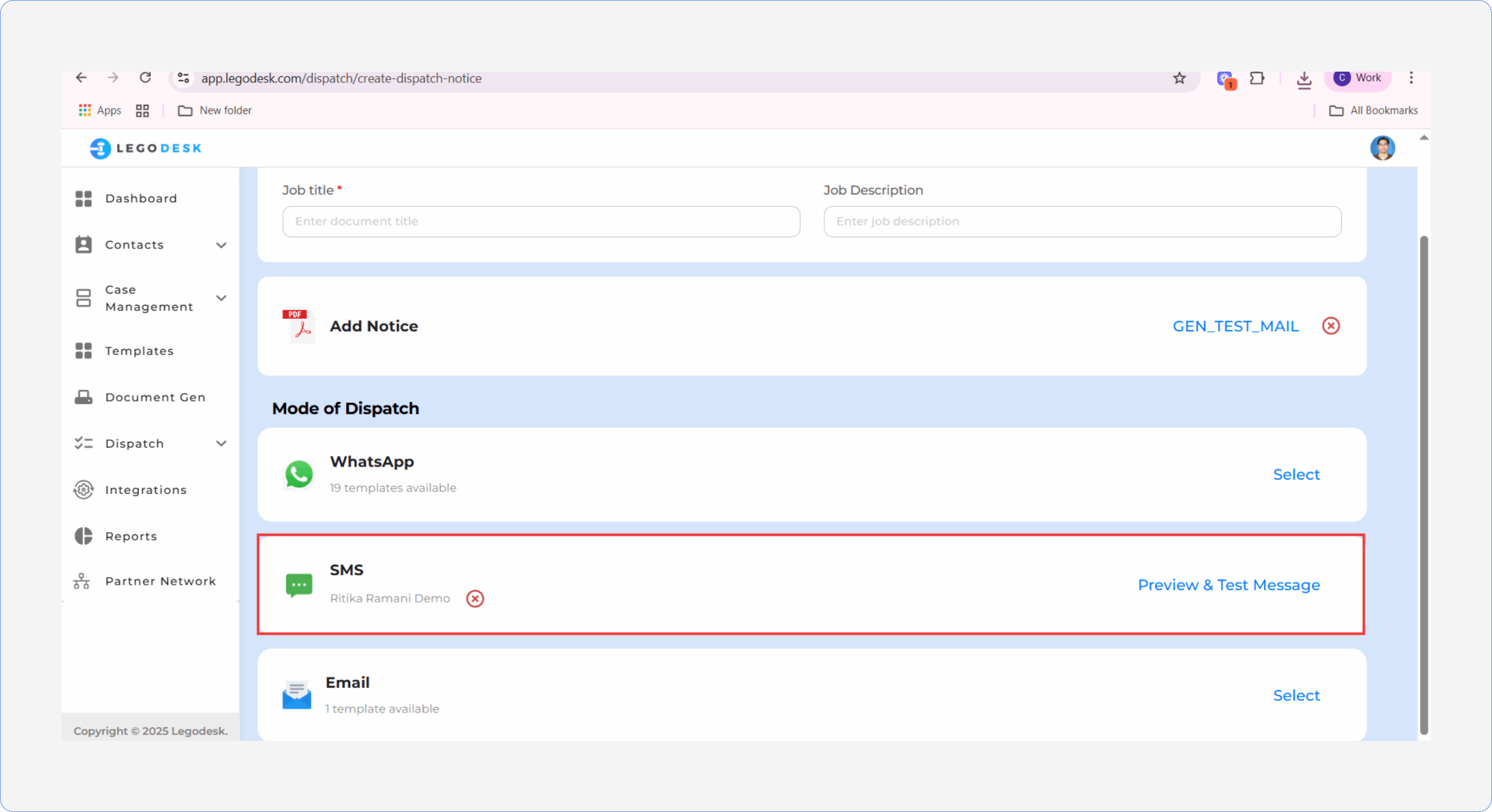
Here users need to enter Job Title & Job Description.
Select a desired Notice in the Add Notice section.
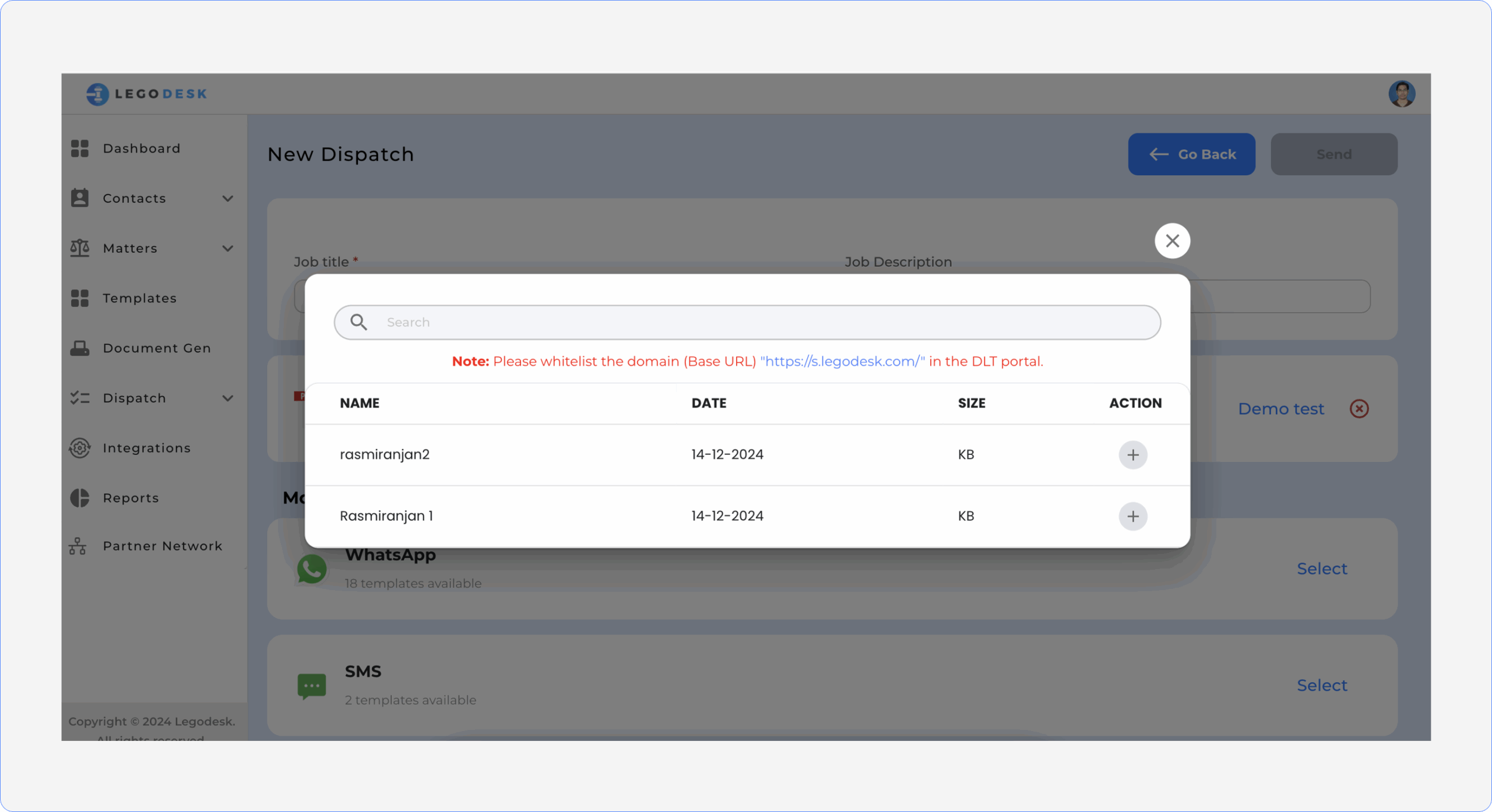
Select a desired SMS template.
If a user wants to dispatch a notice using both SMS and WhatsApp mediums, they can also select a WhatsApp template in the WhatsApp section.
After selecting an SMS template, the Preview and Test Message button will appear in the SMS section.
Selecting this button, Preview pop up will display with preview of the SMS text along with a text box to enter up to 5 Mobile numbers. After entering test mobile numbers, users can hit the ‘Send Test Message’ button.
SMS will be delivered to the desired mobile numbers. This feature helps the user to check the message text before dispatching bulk messages to the borrowers.
If everything goes well, users can hit the ‘Send’ button available at the top right corner of the New Dispatch page.
Dispatch details will display the delivery status report with CSV download options. The downloaded CSV report shows the details like individual notice link, mobile numbers, borrower details, dispatch status with timestamp.
Legodesk is not a law firm and does not provide legal advice. The use of any materials or services or software is not a substitute for legal advice. Only a legal practitioner can provide legal advice and a legal practitioner should be consulted for any legal advice or matter. We neither endorse, nor solicit the work of any Lawyers, Law Firms, and Legal Professionals.