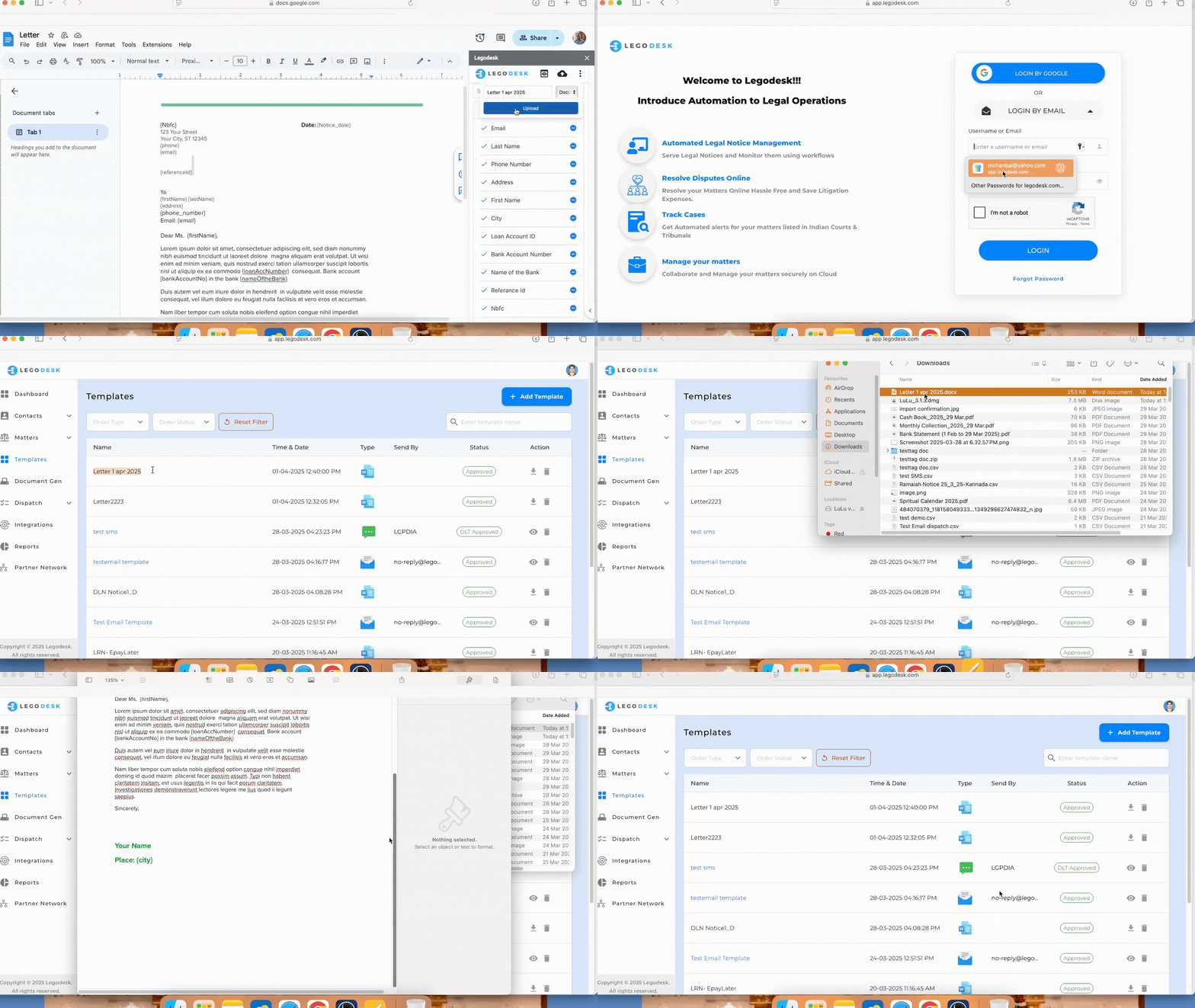
How to access a Google docs template within the Legodesk application using the extension?
Legodesk Google doc Editor
It covers the process of inserting dynamic fields, previewing your document, uploading it to Legodesk, and accessing it later from the Legodesk platform. This guide provides a step-by-step overview of how to effectively use the Legodesk – Doc Editor within Google Docs.
How to Use the Legodesk Add-On
- Download the Legodesk add-on (Google Doc Editor) from the Google Play Store or App Store. https://workspace.google.com/marketplace/app/legodesk_doc_editor/239554801308
- Open the Google Document you want to edit.
- Click on Extensions > Legodesk – Doc Editor.
- The Legodesk pop-up panel will appear on the right side of your screen.
Log in using your Legodesk account credentials to begin.
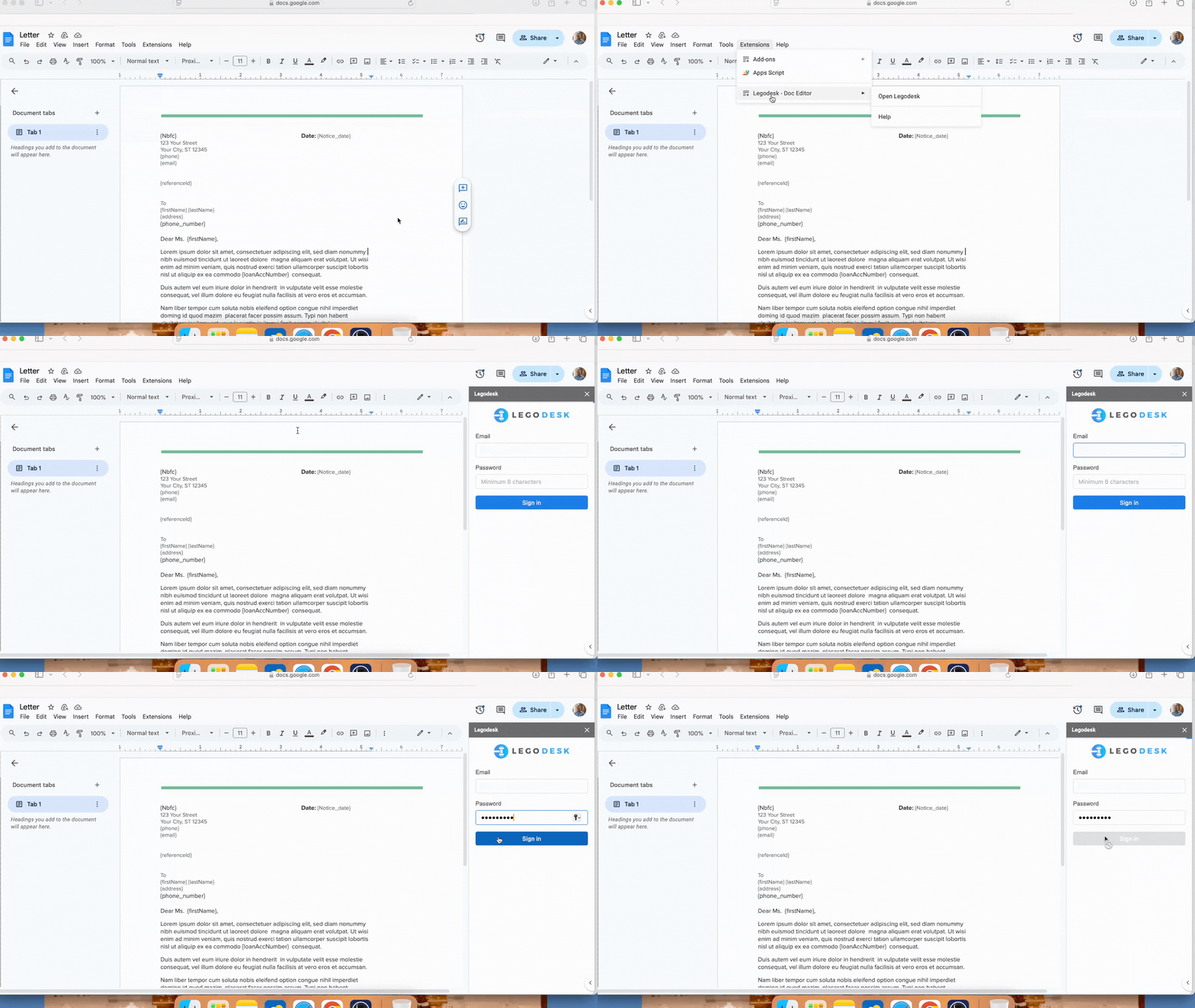
1. Insert Dynamic Fields to Your Document
In the search bar, type “city” and click on the field from the suggestions.
→ The City field will be added to your document.Next, type “email” in the search bar and select it.
→ The Email field will be inserted into your document.Repeat the above steps to add the following fields:
Bank Account Number
Name of the Bank
Once completed, all selected fields will appear in the document, ready for dynamic data population.
2. Preview and upload the document
After inserting all required fields:
Click on the Preview option to review your document with the dynamic fields.
- Search for the letter name, then click on Upload.
→ A confirmation pop-up will appear, indicating that the document has been successfully uploaded. Once satisfied, click Upload to save the document template to your Legodesk account for future use.
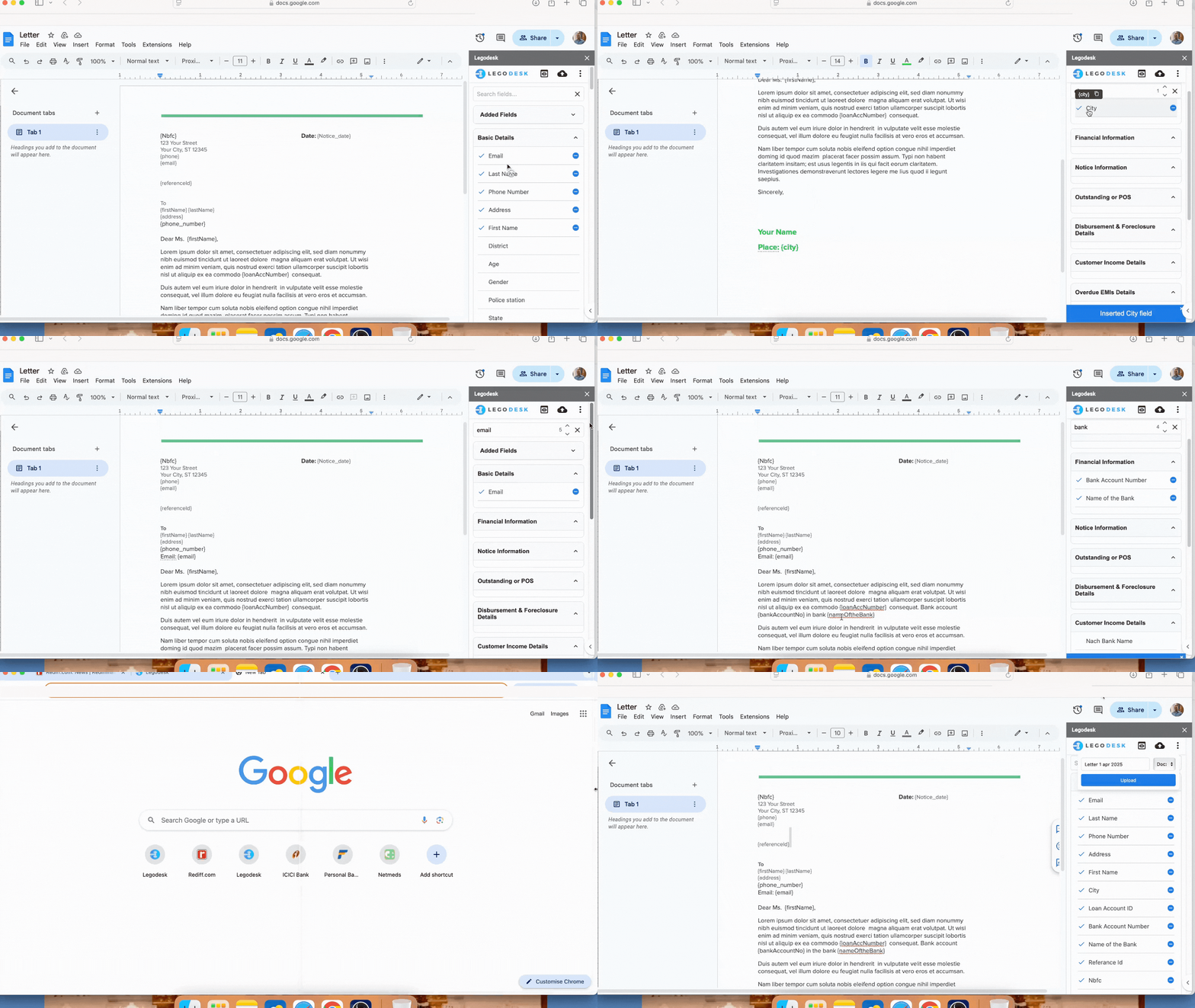
3. Accessing the Uploaded Template in the Legodesk App
Open the Legodesk Web Application
Open a new browser tab and navigate to the Legodesk Application.
Log in using your existing credentials.
Locate and Download the Uploaded Template
From the dashboard, navigate to the Templates section via the left-hand menu.
Search for the letter name or locate the template you recently uploaded.
Click on the template to download it.
→ The file will be saved to your Downloads folder.