

Email template composer- transitions between different features.
Introduction
Transitions between different features
Introduction
The email template feature provides a centralized workspace to create, manage, and reuse standardized communication with dynamic personalization using placeholders. It enables a smooth flow from template creation and editing to previewing and final usage in outbound email journeys, ensuring consistency and efficiency. By automating repetitive communication and integrating with real-time data, it significantly reduces manual effort while improving accuracy and scalability.
Create Email template
Navigation: Template > Add Template > Email
Navigate to Email Templates Section
- Go to the main dashboard
- Open the Templates / Communication / Email Templates dropdown
Create a New Template
- Click on “Create Template” or “+ New Template”
- A template creation interface opens
Enter Basic Template Details
- Add:
- Template Name
- Select Channel
- Sender Mail
- Add Signature
Compose Email Content
- Use the rich text editor to write the email body
- Format text (bold, bullets, alignment, etc.)
Insert Dynamic Placeholders
- Select placeholders (e.g., customer name, loan ID, due amount)
- Insert them directly into the content
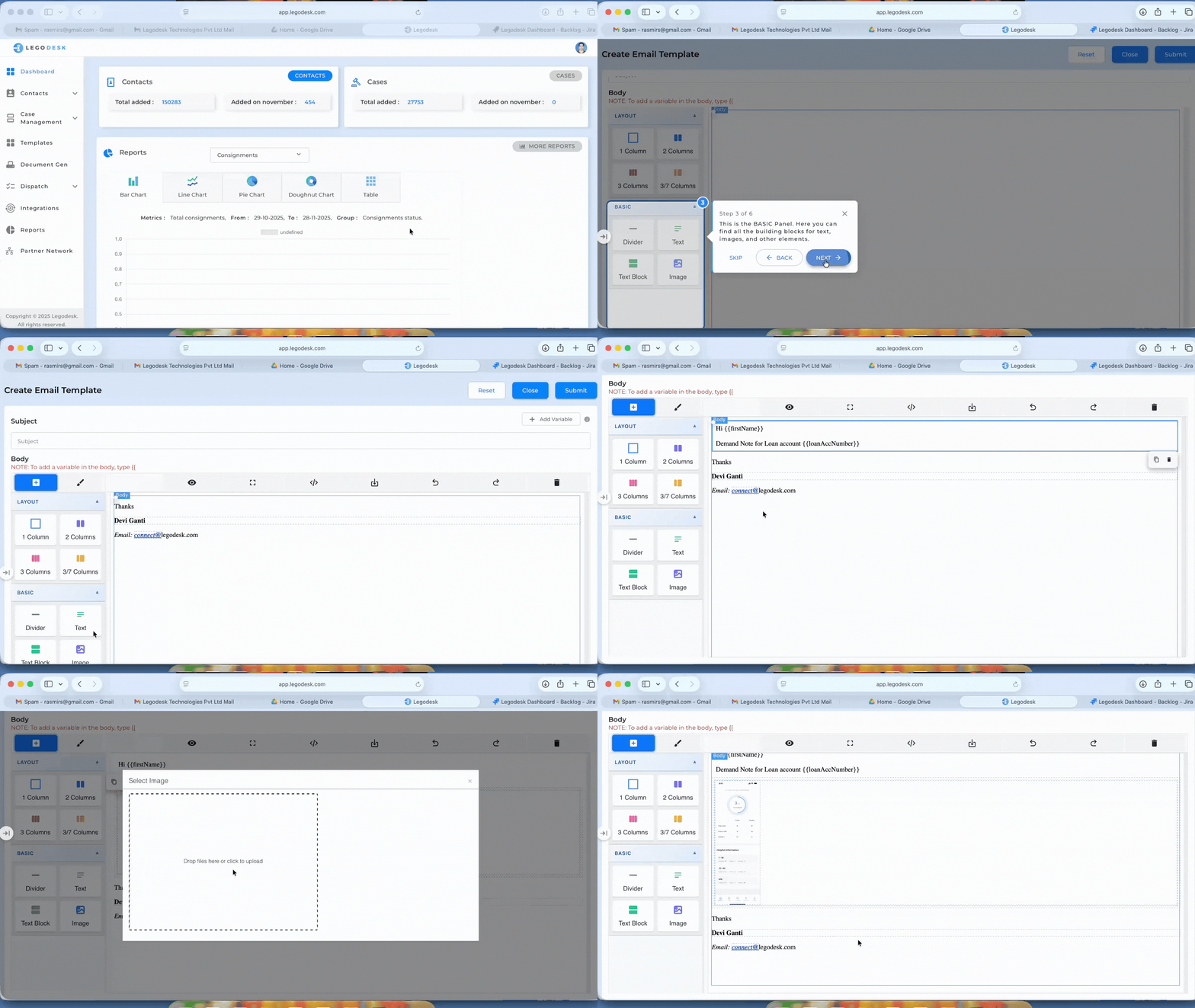
Preview the Template
- Click on Preview
- See how the email will look with sample data
Save / Update Template
- Click Save or Update
- Template is stored and added to the template list
Edit Existing Templates
- From the list view, click on any template
- Modify content, placeholders, or subject
- Save changes
Use Template in Communication Flow
- Select the template while sending an email
- System auto-populates:
- Content
- Placeholders with actual data

