Cases tracking
Introduction
How to Access Case Tracking?
Introduction
The Case Tracking feature enables users to monitor all ongoing and pending court cases in one place. It integrates with the e-Courts system, allowing users to fetch real-time case details such as case history, hearing dates, and status updates.
This feature eliminates manual tracking and provides complete visibility into litigation progress, helping teams stay proactive and organized.
How to Access Case Tracking?
Log in to your Legodesk account
Navigate to:
Case Management → Case Tracking
Step 1: Choose Search Method
You can track cases using either of the following options:
- Case Number
- Party Name (Petitioner/Respondent)
Select the preferred option at the top of the screen
Step 2: Enter Required Details
Fill in the mandatory fields:
- State
- District
- Court Complex
- Petitioner / Respondent Name (if using Party Name search)
- Registration Year
Step 3: Fetch Case Data
- Click on the Fetch button
- The system will retrieve case data directly from the eCourts database
Step 4: View Case List
Once fetched, a list of cases will be displayed including:
- Case Number
- Court Name
- Case Type
- Party Name
You can also:
- Use the search bar to filter results
- Identify unmapped cases
Step 5: Map Cases to Contacts
- Select one or multiple cases using checkboxes
- Map them to relevant contacts in the system
Why this matters:
Mapping ensures that case details are directly linked to the borrower/contact profile.
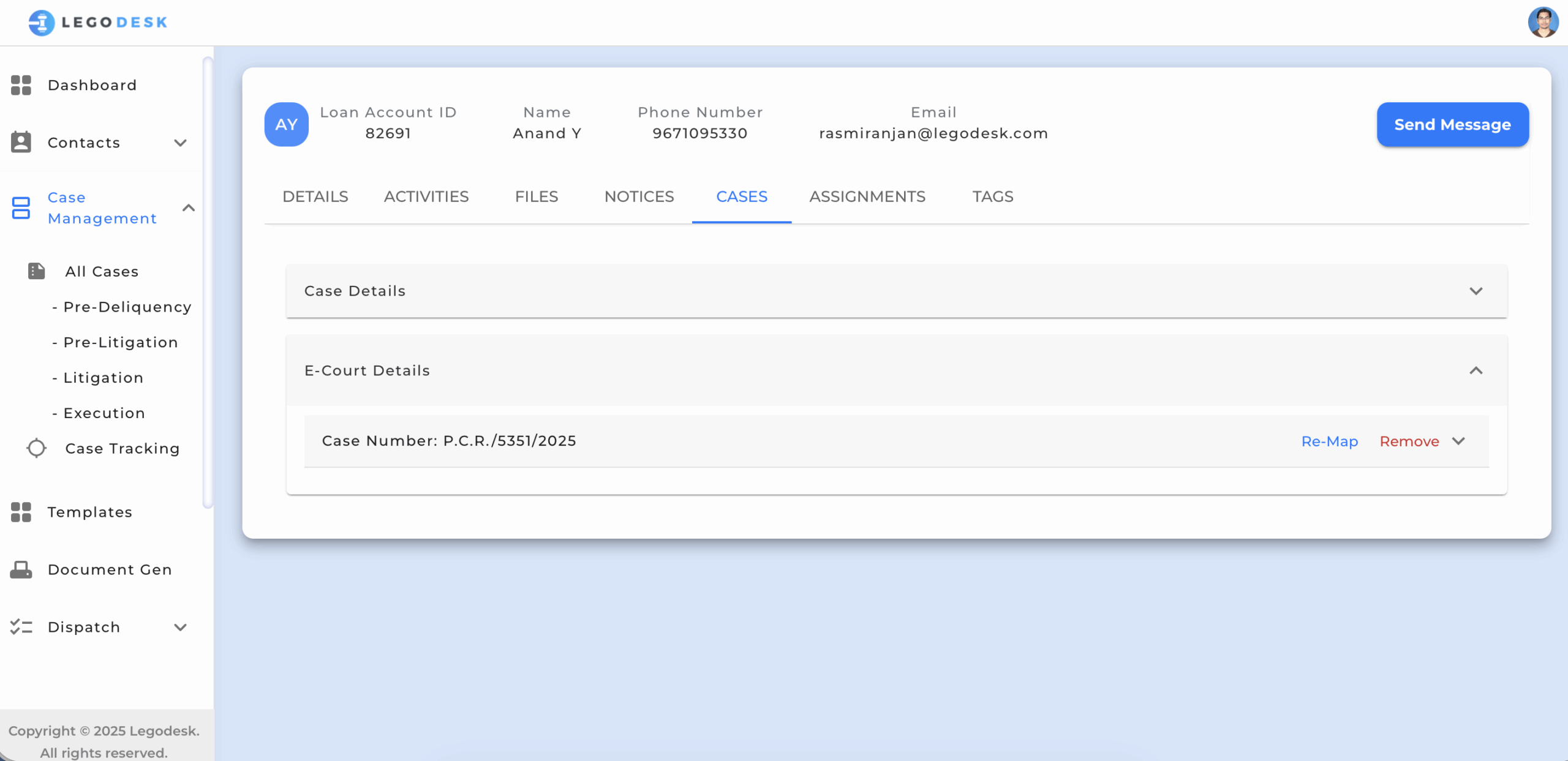
Step 6: View Case Details in Contact Profile
- Navigate to the Contact Details page
- Open the Cases tab
- View:
- Case Number
- Case History
- Hearing Dates
- Status updates