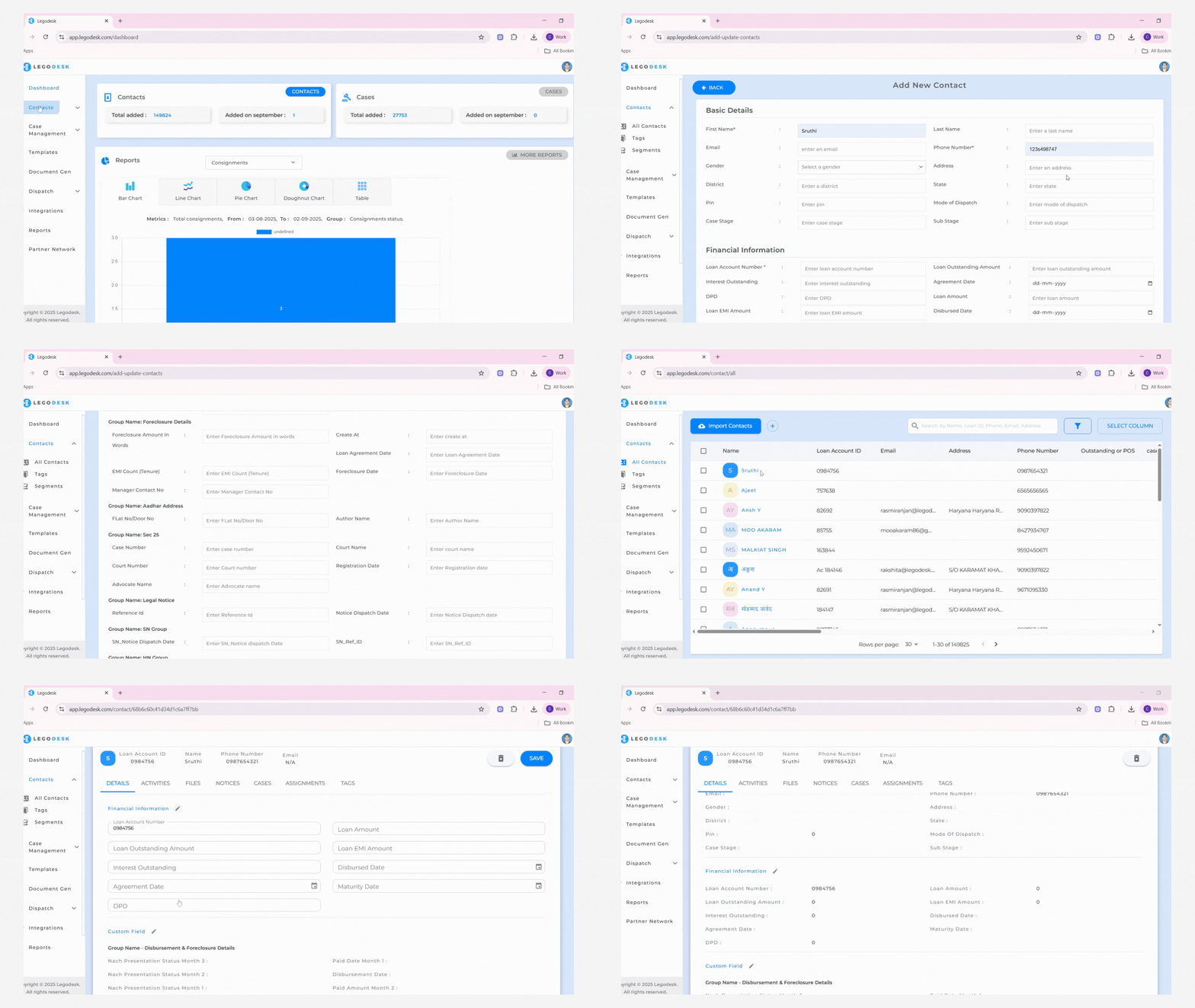
The Contacts feature allows to store, manage, and access borrower or client details in one place, ensuring quick communication and streamlined record-keeping. It supports both bulk imports and manual entries for efficient data management.
Adding Contacts
Navigate to the Contacts Menu
Go to Contacts > All Contacts.
Option 1: Add Contacts Manually
Click the plus (+) icon to open the contact entry form.
Fill in all the required mandatory fields.
Save the details for future use.
The saved contact will automatically appear in the All Contacts list.
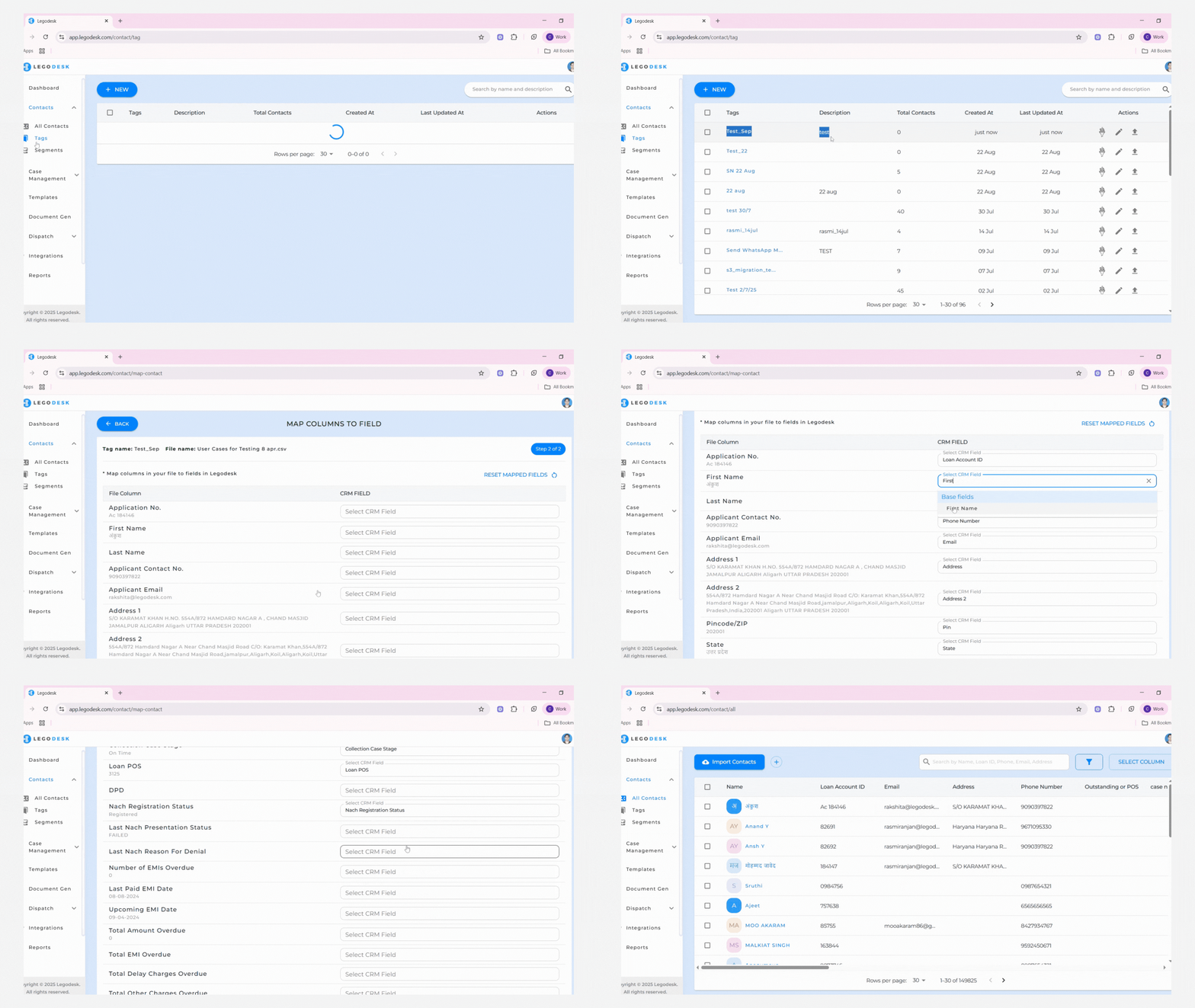
Option 2: Managing and Importing Contacts with Tags
Navigate to the Contacts menu and open the Tags option from the dropdown.
In the Tags column, you can view which tags are linked to specific groups of contacts.
To create a new tag, click the New button, enter the tag name and an optional description, then select Create Tag.
Upload a CSV or XLSX file containing your contact data.
Once the file is uploaded, a notification will confirm that the contact import was successful.
You will then be directed to an interface where you can map the columns of your file to the system fields.
After mapping, click Save to complete the process.
A pop-up confirmation will appear showing that all contacts have been imported successfully.
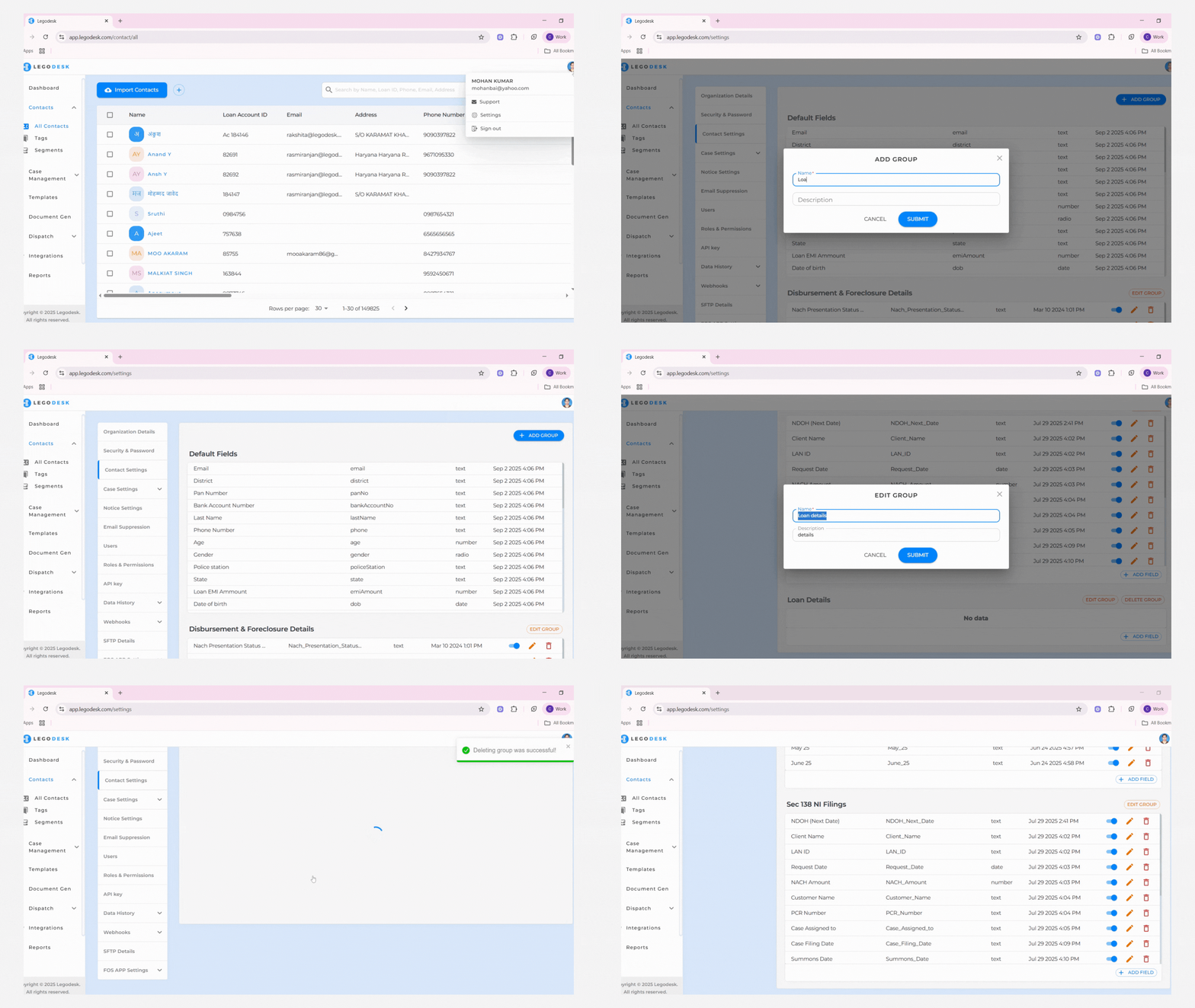
Creating Contact Groups and Adding Fields for Mapping
Navigate to Settings and select Contact Settings.
In this section, you will see the existing groups that map with the columns in the All Contacts interface.
To create a new group, click Add Group, enter the Group Name and an optional Description, then click Submit.
A pop-up confirmation will appear indicating that the group has been created successfully.
To make changes, click Edit Group to update an existing group.
If a group is no longer needed, you can also delete it directly from the same interface.
Legodesk is not a law firm and does not provide legal advice. The use of any materials or services or software is not a substitute for legal advice. Only a legal practitioner can provide legal advice and a legal practitioner should be consulted for any legal advice or matter. We neither endorse, nor solicit the work of any Lawyers, Law Firms, and Legal Professionals.